
PiKVM MCP Server
This MCP server connects AI agents to a PiKVM device, enabling full keyboard, mouse, and screen control of a physical machine without emulation.
README
PiKVM MCP Server
Give AI agents hands. This MCP server connects Claude Code (or any MCP client) directly to a PiKVM device, giving AI full keyboard, mouse, and screen access to a physical machine -- no browser automation, no virtual desktops, no emulators.
Point it at real hardware. Let the AI see the screen, type commands, click buttons, and navigate GUIs on a machine it could never otherwise touch.
<p align="center"> <img src="assets/simple_setup.jpg" alt="Raspberry Pi 5 connected to a PiKVM V4 Plus" width="600"> <br> <em>A Raspberry Pi 5 controlled via PiKVM V4 Plus -- the AI's physical interface to the real world.</em> </p>
Automatic Mouse Calibration
IP-KVM devices translate mouse coordinates through multiple layers — USB HID emulation, host-side input drivers, display scaling — each introducing positional error. Existing KVM products either ignore this (requiring manual correction) or offer limited auto-sync that only detects cursor acceleration in a fixed corner region.
This MCP server takes a different approach. The pikvm_auto_calibrate tool uses a vision-based algorithm that:
- Moves the cursor a known distance across multiple randomized screen positions
- Diffs screenshot pairs to isolate the cursor via connected-component analysis
- Computes correction factors from detected vs commanded movement using median aggregation
- Self-verifies by moving to target positions and confirming the cursor lands within 20px
The entire process runs in ~30-60 seconds with no human intervention. Noisy screens (tooltips, animations, dynamic content) are handled through multi-round sampling, ratio divergence filtering, and outlier-resistant statistics — the algorithm discards bad data and still converges on accurate factors.
This is the first IP-KVM tooling — commercial or open source — to implement fully automated mouse coordinate calibration via computer vision. It is what makes precise AI-driven mouse control over a network KVM practical.
See it in action
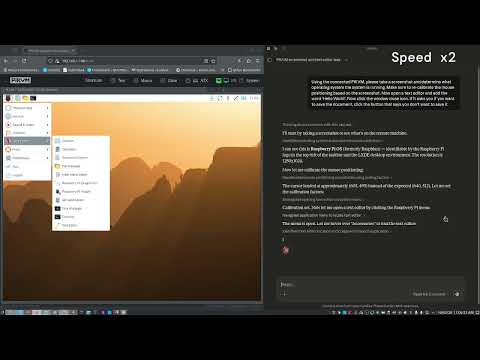
The video below shows Claude Code using this MCP server to autonomously interact with a Raspberry Pi desktop: taking a screenshot to identify the OS, opening a text editor from the menu, typing text, and closing the application -- all through the PiKVM hardware interface.
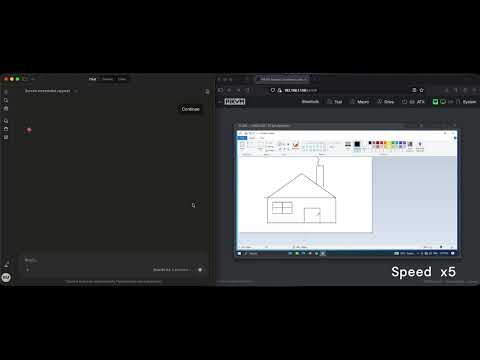
This next demonstration shows Claude, connected via the PiKVM MCP server, responding to a natural language prompt to auto-calibrate its mouse coordinate scaling before performing a series of precision mouse tasks on a remote machine. The session concludes with Claude autonomously drawing a house in MS Paint — a simple but effective showcase of accurate, AI-driven input control over an isolated system.
Features
- Automatic mouse calibration — Vision-based cursor detection computes coordinate correction factors with no manual measurement. The first fully automated calibration for IP-KVM.
- Screenshot capture — Get current screen as JPEG image
- Text typing — Type text with proper special character handling via keymaps
- Keyboard control — Send individual keys or key combinations (e.g., Ctrl+Alt+Delete)
- Mouse control — Move, click, and scroll with calibrated coordinate correction
Installation
npm install
npm run build
Configuration
Copy .env.example to .env and configure:
cp .env.example .env
Edit .env:
PIKVM_HOST=https://<your-pikvm-ip>
PIKVM_USERNAME=admin
PIKVM_PASSWORD=your_password
PIKVM_VERIFY_SSL=false
PIKVM_DEFAULT_KEYMAP=en-us
Usage with Claude Code
Requires Node.js 18+. This server uses ES modules. If
node --versionshows an older version, replace"command": "node"with the full path to a compatible binary (e.g."/usr/local/bin/node"or your nvm path like"~/.nvm/versions/node/v22.x.x/bin/node"). This is common when nvm's default alias points to an older version.
Add to your Claude Code MCP settings (~/.config/claude-code/settings.json or via the settings UI):
{
  "mcpServers": {
    "pikvm": {
      "command": "node",
      "args": ["/path/to/pikvm_mcp_server/dist/index.js"],
      "env": {
        "PIKVM_HOST": "https://<your-pikvm-ip>",
        "PIKVM_USERNAME": "admin",
        "PIKVM_PASSWORD": "your_password"
      }
    }
  }
}
Or if using the .env file:
{
  "mcpServers": {
    "pikvm": {
      "command": "node",
      "args": ["/path/to/pikvm_mcp_server/dist/index.js"]
    }
  }
}
Available Tools
Display
pikvm_screenshot- Capture current screen as JPEG (optional: maxWidth, maxHeight, quality)pikvm_get_resolution- Get screen resolution and valid coordinate ranges
Keyboard
pikvm_type- Type text with keymap-aware special character handling (required: text; optional: keymap, slow, delay)pikvm_key- Send a key or key combo, e.g. Ctrl+Alt+Del (required: key; optional: modifiers, state)pikvm_shortcut- Send multiple keys pressed simultaneously (required: keys array)
Mouse
pikvm_mouse_move- Move cursor to absolute pixel position or relative delta (required: x, y; optional: relative)pikvm_mouse_click- Click a mouse button, optionally at a position (optional: button, x, y, state)pikvm_mouse_scroll- Scroll the mouse wheel (required: deltaY; optional: deltaX)
Calibration
pikvm_auto_calibrate- Automatically detect cursor and compute calibration factors (preferred)pikvm_calibrate- Start manual calibration by moving cursor to screen center for visual verificationpikvm_set_calibration- Apply correction factors calculated from calibration (required: factorX, factorY)pikvm_get_calibration- Get current calibration statepikvm_clear_calibration- Reset to uncalibrated mode
Skills (Prompts & Skill Tools)
The server exposes 15 skills that provide structured guidance for agents. Each skill is available via two discovery paths:
- MCP Prompts —
prompts/list/prompts/getfor clients that support the Prompts capability. - Skill Tools —
tools/list/tools/callasskill_*read-only tools, ensuring visibility in marketplaces (e.g. LobeHub) that index tools only.
Tool Guides
| Prompt Name | Skill Tool | Description |
|---|---|---|
take-screenshot |
skill_take_screenshot |
Capturing screenshots with pikvm_screenshot |
check-resolution |
skill_check_resolution |
Checking screen resolution with pikvm_get_resolution |
type-text |
skill_type_text |
Typing text with pikvm_type |
send-key |
skill_send_key |
Sending keys with pikvm_key |
send-shortcut |
skill_send_shortcut |
Sending keyboard shortcuts with pikvm_shortcut |
move-mouse |
skill_move_mouse |
Moving the mouse with pikvm_mouse_move |
click-element |
skill_click_element |
Clicking with pikvm_mouse_click |
scroll-page |
skill_scroll_page |
Scrolling with pikvm_mouse_scroll |
auto-calibrate |
skill_auto_calibrate |
Automatic mouse calibration with pikvm_auto_calibrate |
Workflow Recipes
| Prompt Name | Skill Tool | Arguments | Description |
|---|---|---|---|
setup-session-workflow |
skill_setup_session_workflow |
— | Initialize a PiKVM session |
calibrate-mouse-workflow |
skill_calibrate_mouse_workflow |
— | Calibrate mouse coordinates |
click-ui-element-workflow |
skill_click_ui_element_workflow |
element_description (required) |
Find and click a UI element |
fill-form-workflow |
skill_fill_form_workflow |
form_description (optional) |
Fill in a form on screen |
navigate-desktop-workflow |
skill_navigate_desktop_workflow |
goal (required) |
Navigate a desktop environment |
auto-calibrate-mouse-workflow |
skill_auto_calibrate_mouse_workflow |
— | Automatic mouse calibration |
See docs/skills/ for detailed human-readable guides.
Key Codes Reference
Common key codes for pikvm_key and pikvm_shortcut:
- Letters:
KeyA,KeyB, ...KeyZ - Numbers:
Digit0,Digit1, ...Digit9 - Function keys:
F1,F2, ...F12 - Modifiers:
ShiftLeft,ShiftRight,ControlLeft,ControlRight,AltLeft,AltRight,MetaLeft,MetaRight - Special:
Enter,Escape,Backspace,Tab,Space,Delete,Insert,Home,End,PageUp,PageDown - Arrows:
ArrowUp,ArrowDown,ArrowLeft,ArrowRight
License
GPL-3.0 - See LICENSE for details.
Recommended Servers

playwright-mcp
A Model Context Protocol server that enables LLMs to interact with web pages through structured accessibility snapshots without requiring vision models or screenshots.

Magic Component Platform (MCP)
An AI-powered tool that generates modern UI components from natural language descriptions, integrating with popular IDEs to streamline UI development workflow.

Audiense Insights MCP Server
Enables interaction with Audiense Insights accounts via the Model Context Protocol, facilitating the extraction and analysis of marketing insights and audience data including demographics, behavior, and influencer engagement.

VeyraX MCP
Single MCP tool to connect all your favorite tools: Gmail, Calendar and 40 more.

graphlit-mcp-server
The Model Context Protocol (MCP) Server enables integration between MCP clients and the Graphlit service. Ingest anything from Slack to Gmail to podcast feeds, in addition to web crawling, into a Graphlit project - and then retrieve relevant contents from the MCP client.

Kagi MCP Server
An MCP server that integrates Kagi search capabilities with Claude AI, enabling Claude to perform real-time web searches when answering questions that require up-to-date information.

E2B
Using MCP to run code via e2b.

Neon Database
MCP server for interacting with Neon Management API and databases

Exa Search
A Model Context Protocol (MCP) server lets AI assistants like Claude use the Exa AI Search API for web searches. This setup allows AI models to get real-time web information in a safe and controlled way.

Qdrant Server
This repository is an example of how to create a MCP server for Qdrant, a vector search engine.