
NetMap — Network Diagram MCP
Visual network topology editor with AI agent integration via MCP. One-click SSH + web-service access from any node, nmap/CSV import, smart auto-layout, multi-sheet, local-first. Open-source successor to netViz (CA Technologies 1990-2012)
README
@den.dance/network-diagram-mcp

Visual network topology editor with AI agent integration via the Model Context Protocol. Open-source successor to netViz (netViz Inc., 1990 → CA Technologies → discontinued 2012).
Try it live → https://map.den.dance/
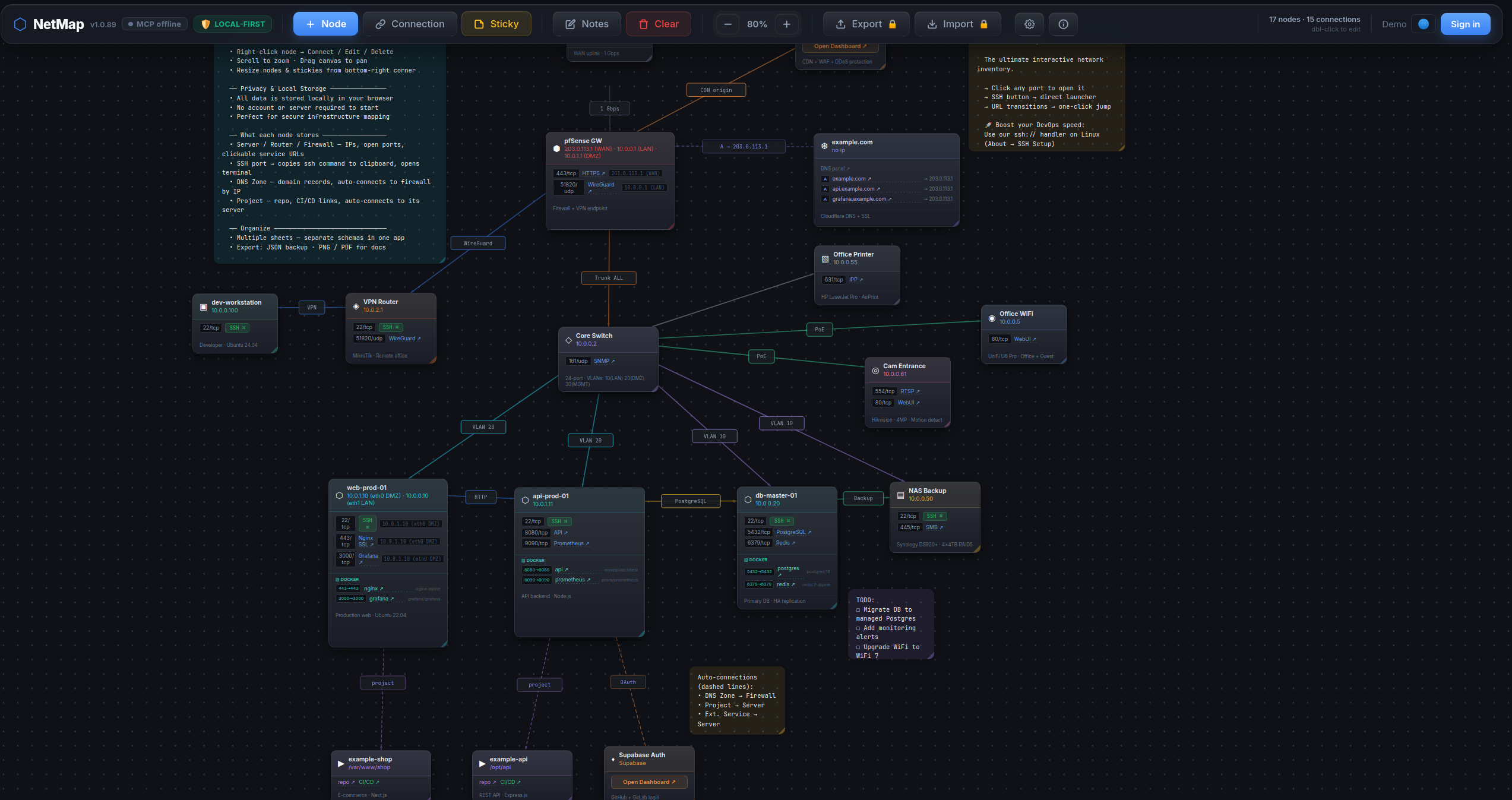
What makes it different
- One-click ops dashboard. Click any web port (80 / 443 / 8080 / …) on a node card to open the service in a new tab. Click an SSH / Postgres / Redis port → in-app picker offers your installed clients (iTerm / Windows Terminal / psql / DBeaver / redis-cli / RDM / …) and launches the one you choose. The picker re-detects every click — newly installed clients show up immediately, never a silent locked-in default.
- AI agents edit the map. 44 MCP tools — your Claude / Cursor / Claude Desktop session can build a diagram for you, search across nodes / ports / notes, run smart auto-layouts, export PNG / PDF — all by talking to the open browser tab.
nmap -oXimport. Run a network scan, hand the XML to the agent, get a map with nodes auto-typed from OS fingerprint + port profile (router / switch / firewall / server / printer / …).- CSV inventory import. Drop in your asset spreadsheet — auto-detects columns
(name / ip / type / ports / notes; aliases like
hostname/descriptionaccepted). - Operator-grade node cards. Per-node: open ports with service names, Docker services, DNS domains, free-form notes. All searchable cross-entity via the agent.
- Smart auto-layout. Force-directed (deterministic via seed), cluster-by-type, cluster-by-connection.
- Multi-sheet, local-first. Multiple maps in one workspace, everything in
localStorage. No login, no cloud. Export JSON / PNG / PDF.
How it works
This package is a stdio → WebSocket bridge. It runs locally as an MCP server; the live NetMap browser tab connects to it over WebSocket. The agent talks to the bridge over MCP; the bridge forwards calls to the browser, which updates React state in real time.
LLM agent (Claude Code / Claude Desktop / Cursor)
   │  MCP protocol (stdio)
   ▼
@den.dance/network-diagram-mcp  ←  this package, runs locally
   │  WebSocket ws://localhost:47821
   ▼
NetMap in browser (https://map.den.dance/)  ←  React state updates live
⚠️ Requires an open NetMap browser tab. Open https://map.den.dance/ — the MCP bridge is enabled by default (v1.2+), so the connection comes up as soon as the tab is open. Without an open tab the bridge has no peer and every tool call will time out. (To opt out:
Settings → ⚙ → Integrations → AI Agent (MCP) → Enable WebSocket connection.)
Install
Claude Desktop
Add to claude_desktop_config.json:
{
  "mcpServers": {
    "netmap": {
      "command": "npx",
      "args": ["@den.dance/network-diagram-mcp"]
    }
  }
}
Claude Code
claude mcp add netmap -- npx @den.dance/network-diagram-mcp
With a custom port:
claude mcp add netmap -e NETMAP_MCP_PORT=12345 -- npx @den.dance/network-diagram-mcp
Then open https://map.den.dance/ — the bridge is enabled by default (v1.2+). Settings → Integrations → AI Agent (MCP) if you need to inspect or toggle the connection. The toolbar will show a 🟢 MCP online badge when the browser and server are connected.
Verify the agent side:
claude mcp list
You should see netmap in the list.
Environment variables
| Var | Default | Description |
|---|---|---|
NETMAP_MCP_PORT |
47821 |
Local WebSocket port the bridge listens on. Must match the URL configured in NetMap's Settings → Integrations → AI Agent (MCP). |
URL Protocol Handlers + in-app client picker (v1.1+, picker since v1.2)
This package also ships an OS-level agent that registers handlers for ssh://,
postgres://, and redis:// URLs. Click any such link in a browser or terminal
and the agent spawns your installed client (psql / redis-cli / iTerm /
Windows Terminal / kitty / DBeaver / TablePlus / RedisInsight / …).
Inside NetMap (v1.2+): when the serve daemon is running, clicking an
SSH / Postgres / Redis port button on a node card opens an in-app picker of
installed clients on your machine and launches the one you pick — every click
re-detects, so newly installed clients show up immediately. Without the daemon,
port-clicks fall back to the OS default URL handler.
Install once per machine:
# Linux:   ~/.local/share/applications/netmap-<scheme>-handler.desktop + xdg-mime
# macOS:   ~/Library/Application Support/NetMap/handlers/NetMap<Scheme>Handler.app + lsregister
# Windows: HKCU\Software\Classes\<scheme>  (per-user, no admin)
npx @den.dance/network-diagram-mcp install --all
Other CLI subcommands:
npx @den.dance/network-diagram-mcp install ssh        # single scheme
npx @den.dance/network-diagram-mcp uninstall postgres # remove registration
npx @den.dance/network-diagram-mcp list               # what's registered (JSON)
npx @den.dance/network-diagram-mcp detect ssh         # which clients are available
npx @den.dance/network-diagram-mcp serve              # daemon: WS + HTTP on :47821
Click handling is daemon-less — OS routes the link to a short-lived
bin/handler.js process which parses the URL, picks the first installed
client (priority order: CLI → popular GUI → cross-platform power), and spawns
it. The optional serve daemon adds HTTP endpoints (/status, /detect,
/exec) for browser-side integration with a Bearer-token-gated /exec.
npx @den.dance/network-diagram-mcp with no args still runs the original
stdio MCP server (back-compat — Smithery / Claude Desktop probes are
unaffected).
Top-5 clients per scheme (priority order, first-installed wins):
| Scheme | Clients |
|---|---|
ssh |
iTerm2 → Windows Terminal → GNOME Terminal → Terminal.app → kitty |
postgres |
psql → TablePlus → DBeaver → Beekeeper Studio → pgAdmin 4 |
redis |
redis-cli → RedisInsight → Another Redis DM → Medis → RDM (legacy) |
postgresql:// aliases to postgres; rediss:// is preserved and triggers
redis-cli --tls.
Available tools
State & layout
| Tool | Description |
|---|---|
map_get_state |
Return all nodes, connections, stickies, notes |
map_clear |
Clear the entire map (requires confirm: true) |
map_arrange |
Naive auto-arrange (grid or circle layout — ignores connections) |
map_suggest_layout |
Smart auto-layout: force (force-directed, deterministic via seed), cluster-by-type (lanes per type), or cluster-by-connection (BFS components into zones) |
Nodes
| Tool | Description |
|---|---|
map_add_node |
Add a node (type, name, ip, x, y) |
map_update_node |
Update node fields by id |
map_delete_node |
Delete a node and its connections |
map_move_node |
Move node to new coordinates |
Connections
| Tool | Description |
|---|---|
map_add_connection |
Add connection (from_id, to_id, label?, color?) |
map_update_connection |
Update label or color of a connection |
map_delete_connection |
Delete a connection by id |
Sticky notes
| Tool | Description |
|---|---|
map_add_sticky |
Add a sticky note (text, x?, y?, color?) |
map_update_sticky |
Update text, color, x, y, w, h |
map_delete_sticky |
Delete a sticky note by id |
map_move_sticky |
Move sticky to new coordinates |
Sheets (multi-sheet)
| Tool | Description |
|---|---|
map_list_sheets |
List all sheets with metadata and active sheet id |
map_get_sheet_data |
Get nodes / connections / stickies for a sheet (default: active) |
map_create_sheet |
Create a new empty sheet and switch to it |
map_switch_sheet |
Switch active sheet by id |
map_rename_sheet |
Rename a sheet |
map_delete_sheet |
Delete a sheet (requires confirm: true, can't delete last) |
View / canvas
| Tool | Description |
|---|---|
map_set_zoom |
Set zoom level (0.1–3.0) |
map_set_canvas_offset |
Pan canvas to absolute pixel position |
map_zoom_to_fit |
Auto-fit all nodes into viewport |
Lock / protection
| Tool | Description |
|---|---|
map_lock_sheet |
Lock (locked: true) or unlock (locked: false) a sheet. Locked sheets reject all MCP mutations and disable manual editing in the UI. |
Notes & settings
| Tool | Description |
|---|---|
map_get_notes |
Get sheet-level notes text |
map_set_notes |
Set sheet-level notes text |
map_get_settings |
Get app settings (sshMode, showGrid, etc.) |
map_update_settings |
Update app settings |
Search
| Tool | Description |
|---|---|
map_find_node |
Structured node-only filter by name / ip / type / text. Returns stripped {id, name, type, ip, x, y}. |
map_search |
Full-text cross-entity search. Looks across nodes (name / ip / notes), stickies (text), connection labels, and ports (port number + service name). Optional types: ["nodes","stickies","connections","ports"] narrows the scope. |
map_get_nodes_by_type |
Return every node of a single type with FULL field data (ports, dockerServices, domains, ips, notes, parentServer, …). Use this when you need the complete objects, not the stripped projection from map_find_node. |
Example — find everything matching postgres anywhere in the map:
// → call
{ "q": "postgres" }

// → result
{
  "nodes":       [{ "id": "n1", "name": "db-primary", "type": "server", "ip": "10.0.0.5" }],
  "stickies":    [{ "id": "s2", "text": "TODO: upgrade postgres 15 → 16" }],
  "connections": [{ "id": "c4", "label": "postgres replication", "from": "n1", "to": "n2" }],
  "ports":       [{ "nodeId": "n1", "nodeName": "db-primary", "port": 5432, "protocol": "tcp", "service": "postgresql" }],
  "total": 4
}
map_search and map_get_nodes_by_type are read-only — they work on locked sheets.
Import
| Tool | Description |
|---|---|
map_import_sheet |
Replace active-sheet content with a provided {nodes, connections, stickies?, notes?} JSON. |
map_import_nmap |
Parse nmap -oX output (or a pre-parsed hosts[] array) and create nodes with their open ports. Auto-infers node type from OS fingerprint + port profile (router / switch / firewall / server / printer / …). Nodes auto-arranged in a square-root grid. |
map_import_csv |
Import nodes from CSV. Auto-detects columns from the header row (name / ip / type / ports / notes — aliases like hostname / description accepted). Ports field accepts 22/tcp,80/tcp or bare numbers. Nodes laid out in a 6-column grid. |
Example — turn a 2-host nmap scan into a map in one call:
// → call
{
  "xml": "<?xml version=\"1.0\"?>\n<nmaprun>\n  <host>\n    <address addr=\"10.0.0.1\" addrtype=\"ipv4\"/>\n    <hostnames><hostname name=\"web.local\" type=\"user\"/></hostnames>\n    <ports>\n      <port protocol=\"tcp\" portid=\"22\"><state state=\"open\"/><service name=\"ssh\"/></port>\n      <port protocol=\"tcp\" portid=\"80\"><state state=\"open\"/><service name=\"http\"/></port>\n    </ports>\n  </host>\n  <host>\n    <address addr=\"10.0.0.2\" addrtype=\"ipv4\"/>\n    <os><osmatch name=\"Cisco IOS router\" accuracy=\"98\"/></os>\n  </host>\n</nmaprun>"
}

// → result
{ "count": 2, "ids": ["…", "…"] }
Provide {"hosts": [...]} instead of xml when you already have parsed host data — hosts takes priority when both are given.
Example — turn a CSV inventory snippet into a map:
// → call
{
  "csv": "name,ip,type,ports,notes\ndb-primary,10.0.0.5,server,\"22/tcp,5432/tcp\",Postgres 15\nrouter-main,10.0.0.1,router,22/tcp,Edge router"
}

// → result
{ "count": 2, "ids": ["…", "…"] }
For non-standard headers, pass an explicit columns mapping (-1 means "absent"):
{
  "csv":     "Host,Address\nfoo,10.0.0.99",
  "columns": { "name": 0, "ip": 1, "type": -1, "ports": -1, "notes": -1 }
}
map_import_nmap and map_import_csv are mutations — blocked on locked sheets.
Layout
map_suggest_layout repositions every node according to a chosen algorithm; result shape:
{ ok: true, algorithm, changed: <node count> }.
// Force-directed (organic; reproducible with seed)
{ "algorithm": "force", "iterations": 200, "seed": 42 }

// Group nodes into horizontal lanes by type
{ "algorithm": "cluster-by-type" }

// Place each connected component in its own x-zone
{ "algorithm": "cluster-by-connection" }
Force-directed is O(n²) per iteration — fine up to a few hundred nodes; bring iterations down
for larger scenes. map_suggest_layout is a mutation — blocked on locked sheets.
Export (JSON / PNG / PDF)
| Tool | Description |
|---|---|
map_export_sheet |
Export a single sheet as a JSON object (auto-connections included). Legacy entry — still works. |
map_export |
Multi-format export: json (object), png and pdf (base64-encoded blob + mimeType). |
// JSON
{ "format": "json" }
// → { format: "json", data: { nodes, connections, stickies, notes, auto_connections } }

// PNG (max 30 s; agent must persist the base64 to a file)
{ "format": "png" }
// → { format: "png", filename: "netmap-<sheetId>.png",
//      base64: "iVBORw0KGgoAAAANSUhEUg…",
//      mimeType: "image/png" }

// PDF
{ "format": "pdf" }
// → { format: "pdf", filename: "netmap-<sheetId>.pdf",
//      base64: "JVBERi0xLjQK…",
//      mimeType: "application/pdf" }
PNG / PDF capture renders the live workspace via html-to-image + jsPDF, so the MCP server raises
the per-command timeout to 30 s for this tool. map_export is read-only — works on locked sheets.
Connection status indicator
A badge appears next to the NetMap version in the toolbar (click it to open Settings):
| Badge | Meaning |
|---|---|
| 🟢 MCP online | Connected — agent can edit the map |
| 🟡 MCP | Connecting to server |
| 🟠 MCP retry N/10 | Retrying, up to 10 attempts × 30 sec |
| 🔴 MCP error | Gave up — start the server, then toggle off / on to retry |
| (no badge) | Disabled in settings |
Detailed status (with URL and hints) is shown inside Settings → Integrations → AI Agent (MCP).
Running from source (for contributors)
git clone https://github.com/den-indance/network-diagram-mcp.git
cd network-diagram-mcp
npm install
node index.js
Override port: NETMAP_MCP_PORT=12345 node index.js.
Register the local build in Claude Code instead of npm:
claude mcp add netmap-dev -- node /absolute/path/to/network-diagram-mcp/index.js
License
MIT — see LICENSE.
Recommended Servers

playwright-mcp
A Model Context Protocol server that enables LLMs to interact with web pages through structured accessibility snapshots without requiring vision models or screenshots.

Magic Component Platform (MCP)
An AI-powered tool that generates modern UI components from natural language descriptions, integrating with popular IDEs to streamline UI development workflow.

Audiense Insights MCP Server
Enables interaction with Audiense Insights accounts via the Model Context Protocol, facilitating the extraction and analysis of marketing insights and audience data including demographics, behavior, and influencer engagement.

VeyraX MCP
Single MCP tool to connect all your favorite tools: Gmail, Calendar and 40 more.

graphlit-mcp-server
The Model Context Protocol (MCP) Server enables integration between MCP clients and the Graphlit service. Ingest anything from Slack to Gmail to podcast feeds, in addition to web crawling, into a Graphlit project - and then retrieve relevant contents from the MCP client.

Kagi MCP Server
An MCP server that integrates Kagi search capabilities with Claude AI, enabling Claude to perform real-time web searches when answering questions that require up-to-date information.

E2B
Using MCP to run code via e2b.

Neon Database
MCP server for interacting with Neon Management API and databases

Exa Search
A Model Context Protocol (MCP) server lets AI assistants like Claude use the Exa AI Search API for web searches. This setup allows AI models to get real-time web information in a safe and controlled way.

Qdrant Server
This repository is an example of how to create a MCP server for Qdrant, a vector search engine.