
mcp-popup-ui
Enables AI assistants to present interactive choices to users via browser popups, supporting single and multiple selections with optional custom input.
README
mcp-popup-ui
An MCP (Model Context Protocol) server that lets AI assistants ask you questions through a visual popup in your browser - instead of just printing text options.
📢 A Note on the Future
This project started as an experimental solution to a gap in the MCP ecosystem: letting AI assistants collect user input through a visual interface rather than plain text. It works today with any MCP-compatible client.
The MCP specification now includes MCP Apps - an official extension that embeds interactive UIs directly in the chat conversation. This provides a better user experience (no browser popup, no context switching) and will eventually be the recommended approach.
For now, mcp-popup-ui remains useful because MCP Apps support is still limited to a few clients (Claude, VS Code Insiders, Goose, Postman, MCPJam). Once MCP Apps becomes widely available, consider migrating to an MCP Apps-based solution for the best experience.
What This Does
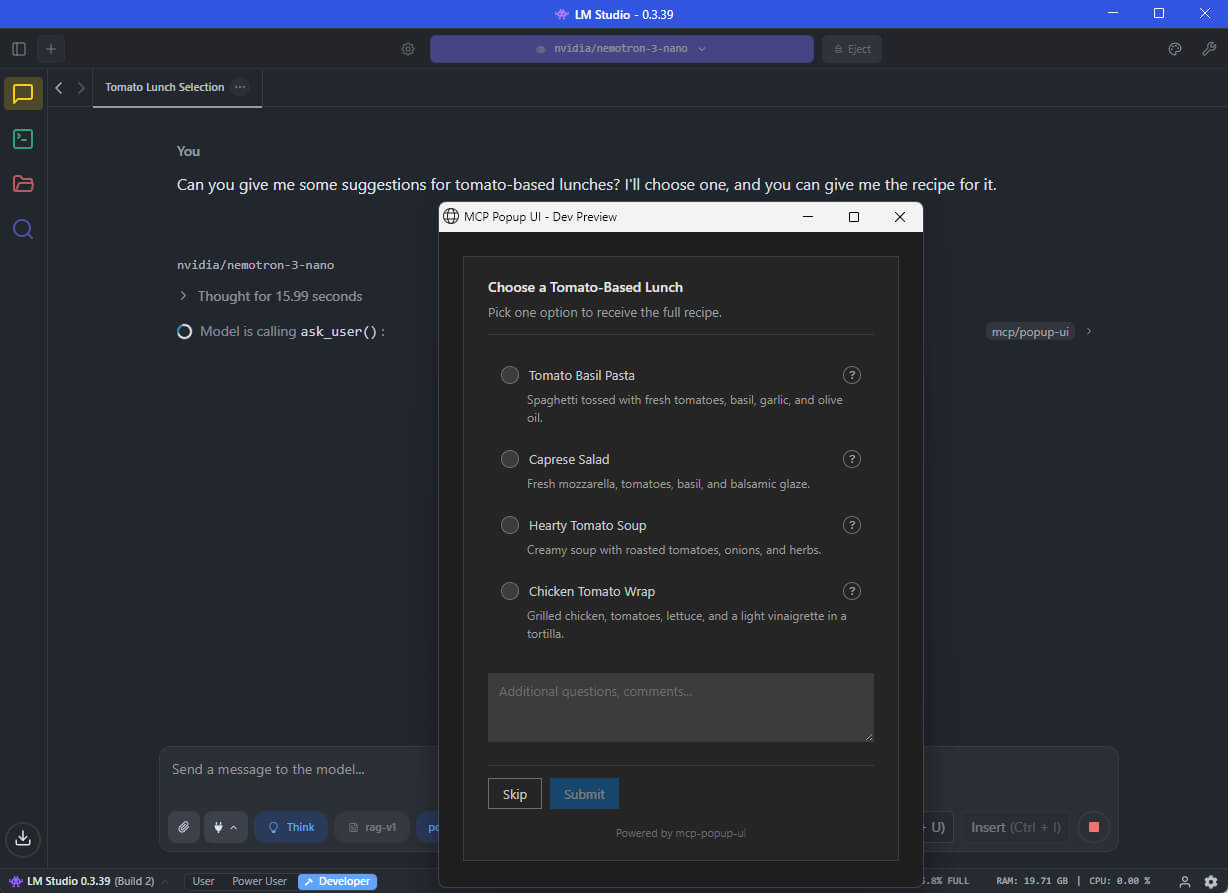
When you chat with an AI assistant (like GitHub Copilot, Claude, or a local LLM), the AI sometimes needs your input - for example, "Which framework do you want?" or "Select the features to include."
Without this tool, the AI would print a numbered list and ask you to type your choice. With mcp-popup-ui, a clean popup opens in your browser where you can click your selection directly.
Two tools are provided:
| Tool | Purpose | UI Element |
|---|---|---|
ask_user |
Pick exactly one option | Radio buttons |
ask_user_multiple |
Pick one or more options | Checkboxes |
Installation
Install globally via npm:
npm install -g mcp-popup-ui
Or run directly without installing:
npx y- mcp-popup-ui
Requirements: Node.js 18 or higher.
Setup
Choose the setup guide for your AI application:
VS Code (GitHub Copilot)
-
Open your project folder in VS Code
-
Create or edit the file
.vscode/mcp.json:{ "servers": { "popup-ui": { "command": "npx", "args": ["mcp-popup-ui"] } } } -
Restart VS Code or reload the window
LM Studio
-
Open LM Studio settings
-
Navigate to the MCP Servers section
-
Add a new server with these settings:
{ "mcp-popup-ui": { "command": "npx", "args": ["mcp-popup-ui"] } } -
Enable the server and start a new chat
Ollama (via Open WebUI or similar)
Ollama itself does not natively support MCP. However, you can use it with frontends that support MCP, such as Open WebUI with MCP plugins. The configuration depends on your specific frontend - consult its documentation for adding MCP servers.
Claude Desktop
Add to your Claude Desktop configuration file:
- Windows:
%APPDATA%\Claude\claude_desktop_config.json - macOS:
~/Library/Application Support/Claude/claude_desktop_config.json
{
  "mcpServers": {
    "popup-ui": {
      "command": "npx",
      "args": ["mcp-popup-ui"]
    }
  }
}
Restart Claude Desktop after saving.
Copilot Instructions (Optional)
To ensure the AI uses the popup tools automatically instead of listing options in text, add this to your project's .github/copilot-instructions.md:
## User Input Collection

Use MCP tools for user choices:

- `ask_user` - single selection (radio buttons)
- `ask_user_multiple` - multiple selection (checkboxes)

Use these tools when presenting options like framework choices, implementation approaches, or any list of alternatives.
Tool Reference
ask_user
Displays a popup with radio buttons. The user picks exactly one option.
Parameters:
| Parameter | Required | Description |
|---|---|---|
options |
Yes | Array of options (minimum 2). Each option has a label (required), optional description, and optional recommended flag. |
title |
No | Heading displayed above the options |
description |
No | Additional text displayed below the title |
allow_other |
No | If true, adds a text field for custom input |
other_label |
No | Label for the custom input option (default: "Other") |
Example call:
{
  "options": [
    { "label": "React", "description": "Component-based UI library" },
    { "label": "Vue", "description": "Progressive JavaScript framework" },
    { "label": "Svelte", "description": "Compile-time framework", "recommended": true }
  ],
  "title": "Choose a Frontend Framework",
  "description": "Select one framework for your project."
}
Response:
{
  "action": "submit",
  "selection": "Svelte"
}
If the user clicks Skip:
{
  "action": "skip"
}
ask_user_multiple
Displays a popup with checkboxes. The user picks one or more options.
Parameters:
| Parameter | Required | Description |
|---|---|---|
options |
Yes | Array of options (minimum 2). Each option has a label (required), optional description, and optional recommended flag. |
title |
No | Heading displayed above the options |
description |
No | Additional text displayed below the title |
allow_other |
No | If true, adds a text field for custom input |
other_label |
No | Label for the custom input option (default: "Other") |
Example call:
{
  "options": [
    { "label": "TypeScript", "recommended": true },
    { "label": "ESLint" },
    { "label": "Prettier" },
    { "label": "Jest" }
  ],
  "title": "Select Project Features",
  "description": "Choose all features to include."
}
Response:
{
  "action": "submit",
  "selections": ["TypeScript", "ESLint", "Prettier"]
}
Additional Features
- Skip button: Users can skip any question without selecting an option
- Comments field: Users can add additional notes with their selection
- Explanation request: Users can ask for more details about an option before deciding
- Markdown support: Option descriptions support Markdown formatting
Documentation
- Tool Design Best Practices - Research on LLM tool design patterns
Contributing
See CONTRIBUTING.md for development setup and guidelines.
License
MIT
Recommended Servers

playwright-mcp
A Model Context Protocol server that enables LLMs to interact with web pages through structured accessibility snapshots without requiring vision models or screenshots.

Magic Component Platform (MCP)
An AI-powered tool that generates modern UI components from natural language descriptions, integrating with popular IDEs to streamline UI development workflow.

Audiense Insights MCP Server
Enables interaction with Audiense Insights accounts via the Model Context Protocol, facilitating the extraction and analysis of marketing insights and audience data including demographics, behavior, and influencer engagement.

VeyraX MCP
Single MCP tool to connect all your favorite tools: Gmail, Calendar and 40 more.

graphlit-mcp-server
The Model Context Protocol (MCP) Server enables integration between MCP clients and the Graphlit service. Ingest anything from Slack to Gmail to podcast feeds, in addition to web crawling, into a Graphlit project - and then retrieve relevant contents from the MCP client.

Kagi MCP Server
An MCP server that integrates Kagi search capabilities with Claude AI, enabling Claude to perform real-time web searches when answering questions that require up-to-date information.

E2B
Using MCP to run code via e2b.

Neon Database
MCP server for interacting with Neon Management API and databases

Exa Search
A Model Context Protocol (MCP) server lets AI assistants like Claude use the Exa AI Search API for web searches. This setup allows AI models to get real-time web information in a safe and controlled way.

Qdrant Server
This repository is an example of how to create a MCP server for Qdrant, a vector search engine.