
LLM Usage & Cost Tracker
A local-first, multi-provider cost meter for LLM usage, exposed as MCP tools. Captures every call into a local SQLite ledger and lets any coding agent query spend, compare providers, and get recommendations — no cloud, no account. First-class support for Chinese providers (Qwen, DeepSeek) alongside Anthropic and OpenAI.
README
<!-- mcp-name: io.github.zhaoyue722/llm-usage-mcp -->
<p align="center"> <img src="https://raw.githubusercontent.com/zhaoyue722/llm-usage-mcp/main/docs/assets/watch-pom.png" alt="llm-usage-mcp" width="140"> </p>
<h1 align="center">llm-usage-mcp</h1>
<p align="center"><em>LLM Usage & Cost Tracker — your local-first spend watchdog</em></p>
<p align="center"> <a href="https://github.com/zhaoyue722/llm-usage-mcp/actions/workflows/ci.yml"><img src="https://github.com/zhaoyue722/llm-usage-mcp/actions/workflows/ci.yml/badge.svg" alt="CI"></a> <a href="https://github.com/zhaoyue722/llm-usage-mcp/blob/main/LICENSE"><img src="https://img.shields.io/badge/License-MIT-blue.svg" alt="License: MIT"></a> <a href="https://www.python.org/downloads/"><img src="https://img.shields.io/badge/python-3.13%2B-blue.svg" alt="Python 3.13+"></a> <a href="https://glama.ai/mcp/servers/zhaoyue722/llm-usage-mcp"><img src="https://glama.ai/mcp/servers/zhaoyue722/llm-usage-mcp/badges/score.svg" alt="Glama score"></a> </p>
<p align="center">English | <a href="https://github.com/zhaoyue722/llm-usage-mcp/blob/main/README.zh.md">中文</a></p>
Stop treating your LLM API bills like a scary horror movie you only look at through your fingers at the end of the month. Know what your LLM calls actually cost — across every provider, in one place, on your own machine. Ask your coding agent (MCP) or type a command (CLI).
It's a cost meter, not a router: it tells you what you spent and which provider fits a workload — it never changes your calls. Pairs happily alongside a router or a model-leaderboard tool.
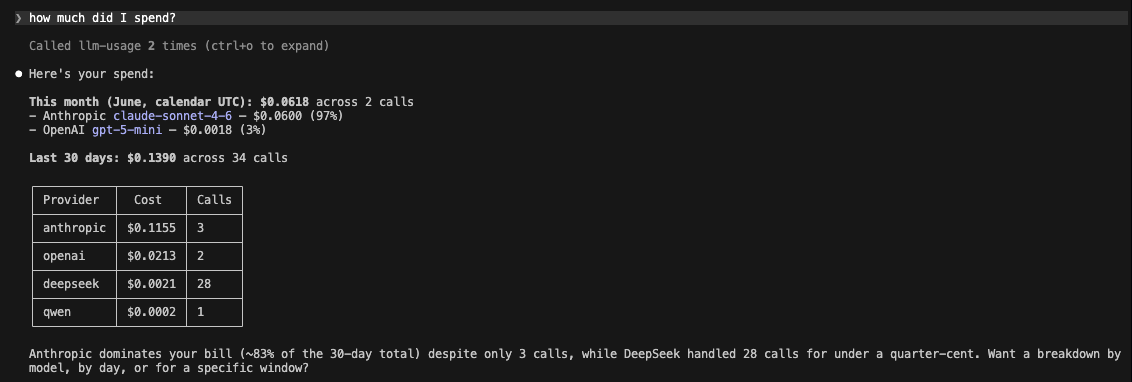
Or straight from the terminal — your week's spend, broken down by provider, and a cross-provider cost comparison before you commit to a model:

Why you'd want this
You're calling LLMs from a handful of providers — Claude, GPT, plus Chinese models like Qwen and DeepSeek. Each one bills in its own dashboard, in its own currency, with its own rules for what a "cached token" costs. So the simplest possible question — how much am I spending, and on what? — turns into four browser logins, looking up exchange rates for RMB to USD, and trying to decipher what a "cached context token discount" actually means in midnight math. Most people just cross their fingers and let the bill be a surprise at the end of the month.
llm-usage-mcp captures every call you make into one local store, costs it correctly per provider at the moment it happens, and hands the answer back two ways:
- Ask your coding agent. It's an MCP server, so Claude Code, Cursor, or any MCP client can answer "how much did I spend on Claude this week?" or "which provider is cheapest for a 10k-in / 2k-out call?" in plain English.
- Or type a command. It's also a CLI —
llm-usage spend,llm-usage compare,llm-usage recommend— for when you'd rather not round-trip through an agent.
And it stays out of your way:
- Local-first. No SaaS, no signup, no telemetry. Just a SQLite file at
~/.llm-usage/usage.db. Privacy is a feature, not a setting. - Multi-provider, Chinese models included. Anthropic, OpenAI, DeepSeek, Qwen — streaming and non-streaming for all four. DeepSeek and Qwen run the same capture path as Anthropic and OpenAI, not a bolted-on afterthought. More providers (Gemini, Bedrock, Moonshot, …) are on the way.
Quickstart
Two minutes from git clone to your first captured call. This part is about capture — getting calls recorded. Reading the data back comes next.
1. Install
Install from PyPI with uv (or pipx) — this puts the three console scripts on your PATH:
uv tool install llm-usage-mcp # or: pipx install llm-usage-mcp
Prefer to hack on it? Clone and sync from source instead:
git clone https://github.com/zhaoyue722/llm-usage-mcp.git
cd llm-usage-mcp
uv sync
Either way you get three console scripts:
llm-usage— the multi-command CLI. See From the command line (CLI) below.llm-usage-mcp— the stdio MCP server.llm-usage-proxy— a back-compat alias; identical tollm-usage proxy.
The Quickstart below uses
uv run …(the from-source workflow). If you installed from PyPI, the scripts are already on yourPATH— drop theuv runprefix, and register the MCP server withclaude mcp add llm-usage -- llm-usage-mcp.
2. Set at least one API key
You only need a key for the provider(s) you actually use; the proxy starts regardless and per-route requests return 503 configuration_error for any provider whose key is missing.
export ANTHROPIC_API_KEY=sk-ant-...
# and/or:
export OPENAI_API_KEY=sk-...
export DEEPSEEK_API_KEY=sk-...
export DASHSCOPE_API_KEY=sk-...   # Qwen
Full env-var reference: docs/configuration.md (or copy .env.example to .env and fill in).
3. Run the capture proxy
uv run llm-usage-proxy
It binds loopback-only (127.0.0.1:5525) — never reachable from the network. The proxy holds your API keys server-side; clients never need them.
4. Point your coding agent at the proxy
The proxy exposes one route per provider. Set the matching *_BASE_URL env var on the client side:
| Provider | Client env var | Value |
|---|---|---|
| Anthropic | ANTHROPIC_BASE_URL |
http://127.0.0.1:5525 |
| OpenAI | OPENAI_BASE_URL |
http://127.0.0.1:5525/openai/v1 |
| DeepSeek | DEEPSEEK_BASE_URL (or any OpenAI-SDK base-url override) |
http://127.0.0.1:5525/deepseek/v1 |
| Qwen | DashScope OpenAI-compatible base | http://127.0.0.1:5525/qwen/v1 |
Example — launch Claude Code with calls routed through the proxy:
ANTHROPIC_BASE_URL=http://127.0.0.1:5525 claude
5. Confirm it's capturing
Make a call through your agent (or any client pointed at the proxy), then check it landed:
uv run llm-usage spend
Every call lands in ~/.llm-usage/usage.db with tokens, cost, latency, and a request_id for idempotency — and shows up in that headline. That's the whole loop: capture on one side, answers on the other.
Querying your spend
Once calls are being captured, you read them back two ways. Same data, same numbers — pick whichever fits the moment.
Ask your coding agent (MCP)
Register the MCP server with Claude Code:
claude mcp add llm-usage -- uv --directory $(pwd) run llm-usage-mcp
Then just ask, in plain English, inside that session:
How much did I spend on Anthropic today? Which provider is cheapest for a 10k-input / 2k-output call?
Claude picks the right tool and reads the numbers back. Seven tools are exposed over stdio; full param/return shapes are in docs/spec.md.
| Tool | Purpose |
|---|---|
query_spend |
Totals + per-group rollups over a time window (group by provider / model / project / tag / day). |
usage_summary |
Headline summary for today / week / month / year — totals, top-N providers + models, largest call. |
compare_providers |
Given a hypothetical workload (tokens in / out), rank every priced model by cost. |
recommend_provider |
Pick the cheapest priced model that fits a stated budget. |
get_pricing |
Inspect the vendored pricing snapshot. |
list_providers |
List providers + their models + OpenAI-compatibility flag. |
record_usage |
Manual write path — log a call when the capture proxy isn't in the picture. |
query_spend and usage_summary default to include_failed=false so partial-stream rows don't pollute totals; opt-in via the param.
From the command line (CLI)
The same questions, as a CLI — eight subcommands under one llm-usage console, for when typing is faster than asking your agent.
The examples below assume
llm-usageis on yourPATH— eithersource .venv/bin/activateoruv tool install .. Otherwise, prefix each command withuv run(e.g.uv run llm-usage spend).
$ llm-usage
 Local-first LLM spend capture + query, exposed over MCP.

 Commands
   proxy      Run the local LLM capture proxy on 127.0.0.1.
   compare    Project the cost of a hypothetical workload across every priced model.
   models     Browse the local pricing catalog.
   recommend  Recommend the cheapest priced model for a workload + budget.
   spend      Show recorded spend over a calendar period.
   status     Snapshot of the local install: DB, proxy, providers, pricing.
   providers  List configured providers with key state, wire-format, model count.
   about      Show version, author, license, and the project homepage.
| Command | The question it answers |
|---|---|
compare |
Given a workload, who's cheapest? |
models |
What do they actually charge per million tokens? |
recommend |
I've got $0.04 left — which model won't bankrupt me? |
spend |
How much did I just spend? |
status |
Is everything actually working? |
providers |
What's configured locally? |
about |
What is this, and where do I report a bug? |
proxy |
Run the capture proxy (same as llm-usage-proxy). |
Conventions that hold across every command:
--jsonemits the same Pydantic shape the matching MCP tool returns. Pipe straight intojq.--color {auto,always,never}honorsNO_COLORand TTY detection. The palette is a warm, low-contrast dark theme — easy on the eyes at 11pm.- Filter flags (
--provider,--model) are case-insensitive on providers, case-sensitive on models, and repeatable where they act as whitelists. --version/-Vprints the version and exits.--install-completion {bash|zsh|fish|powershell}installs a tab-completion script — one shell restart later, every flag is<Tab>-able.
compare
Rank every priced model by projected cost for an n-input / m-output call. Cheapest first, percent against the cheapest. Default view family-deduplicates rows that share both a model family root and an identical price — so gpt-5-mini and gpt-5-mini-2025-08-07 collapse to one row with ×2. Pass --all to see every catalog row.
# How does an 8k-in / 2k-out call price out today?
$ llm-usage compare --in 8000 --out 2000

# Just OpenAI's models:
$ llm-usage compare --in 8000 --out 2000 --model gpt-5-mini --model gpt-5-nano

# Same projection, JSON for a script:
$ llm-usage compare --in 8000 --out 2000 --json | jq '.ranked[0]'

models
Catalog browser. Sibling of compare, but answers "what does this model charge?" rather than "what would my workload cost?". Rates per million tokens, sorted alphabetically by provider by default; switch with --sort input or --sort output to find the cheapest in either axis. Cache rates are hidden until you ask (--cache) because most models don't have them and empty columns waste width.
# Full catalog, deduped.
$ llm-usage models

# OpenAI's nano models only, with cache rates:
$ llm-usage models --provider openai --match nano --cache

# Cheapest input rate first — quick "what's the floor right now?":
$ llm-usage models --sort input
recommend
Picks one. Filters by --provider, --model, and --budget, then returns the cheapest match plus two runner-ups. The reasoning string explains what it assumed and what got chosen, so you can sanity-check rather than trust blindly.
# Cheapest priced model, full stop.
$ llm-usage recommend

# Anything Anthropic that fits under one cent for a 1k/1k call:
$ llm-usage recommend --provider anthropic --budget 0.01

# Of these three specific candidates, which wins?
$ llm-usage recommend --model gpt-5-mini --model claude-sonnet-4-6 --model qwen-max
v1 ranks by cost only. --task is optional and surfaces in the reasoning text; it doesn't drive selection (the tool isn't an LLM and can't interpret free text).
spend
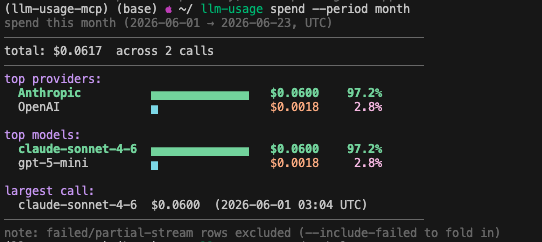
Read the SQLite. The default view is a usage_summary headline — total dollars, top-3 providers, top-3 models, largest single call. Pass --group-by to switch into rollup mode.
# Headline for this week.
$ llm-usage spend

# This month grouped by model, JSON for a dashboard:
$ llm-usage spend --period month --group-by model --json | jq

# Spend on a specific project tag, day-by-day:
$ llm-usage spend --group-by day --project my-side-thing
Period boundaries are calendar UTC: today = since 00:00 UTC, week = since Monday, month = since the 1st, year = since January 1st. Failed / partial-stream rows are excluded by default; opt in with --include-failed.
status
One screen, four sections: Database, Capture proxy, Providers, Pricing. The "is everything actually working?" command. Read-only — running it on a fresh install before you've ever booted the proxy or MCP server prints database not initialized rather than silently creating the file.
$ llm-usage status

# Skip the network probe (offline, CI, slow link):
$ llm-usage status --no-net

# Machine-readable for a healthcheck script:
$ llm-usage status --json
providers
Per-provider configuration view. Wider than the status Providers block: adds the wire-format flag (openai-compat: yes/no) and an optional --models expansion that lists every priced model under each provider.
$ llm-usage providers
$ llm-usage providers --models   # expand each provider with its model list
about
The front-door panel: version, author, license, and the project homepage. The human-facing companion to --version — fields are read from the installed package metadata, so they match what PyPI shows.
$ llm-usage about

# Machine-readable, for a script or an issue template:
$ llm-usage about --json
Supported providers
| Provider | Auth | Non-streaming | Streaming | Cache pricing |
|---|---|---|---|---|
| Anthropic | x-api-key |
yes | yes | cache_creation + cache_read |
| OpenAI | Bearer |
yes | yes | nested prompt_tokens_details.cached_tokens |
| DeepSeek | Bearer |
yes | yes | prompt_cache_hit_tokens / _miss_tokens |
| Qwen (DashScope) | Bearer |
yes | yes | usually omitted on the OpenAI-compat endpoint |
More on the way. Google Gemini, AWS Bedrock, Moonshot (Kimi), Zhipu GLM, MiniMax, and others are scoped in docs/post_v1_providers.md.
Where prices come from. Pricing is a vendored, trimmed snapshot of LiteLLM's pricing JSON, refreshed weekly by a GitHub Action (refresh-pricing.yml). Models LiteLLM doesn't carry yet are filled in locally via pricing_overrides.json.
Configuration
Everything is env vars (or a .env file at the repo root). Defaults are sane — nothing is required to start the proxy. Full reference: docs/configuration.md. The three you're most likely to touch:
| Variable | Default | Purpose |
|---|---|---|
LLM_USAGE_DB_URL |
sqlite:///$HOME/.llm-usage/usage.db |
Where the local DB lives. |
LLM_USAGE_PROXY_PORT |
5525 |
Capture proxy port (loopback only). |
LLM_USAGE_<PROVIDER>_BASE_URL |
each provider's official endpoint | Point a provider at a reverse proxy / gateway — handy in network-restricted regions. |
Docker
A minimal Dockerfile is included only for automated MCP registry validation (e.g. Glama), which verifies that the packaged server boots and responds to MCP introspection. The recommended way to run the server is still uvx llm-usage-mcp locally — this is a local-first tool, not a hosted service.
License
MIT.
Recommended Servers

playwright-mcp
A Model Context Protocol server that enables LLMs to interact with web pages through structured accessibility snapshots without requiring vision models or screenshots.

Magic Component Platform (MCP)
An AI-powered tool that generates modern UI components from natural language descriptions, integrating with popular IDEs to streamline UI development workflow.

Audiense Insights MCP Server
Enables interaction with Audiense Insights accounts via the Model Context Protocol, facilitating the extraction and analysis of marketing insights and audience data including demographics, behavior, and influencer engagement.

VeyraX MCP
Single MCP tool to connect all your favorite tools: Gmail, Calendar and 40 more.

graphlit-mcp-server
The Model Context Protocol (MCP) Server enables integration between MCP clients and the Graphlit service. Ingest anything from Slack to Gmail to podcast feeds, in addition to web crawling, into a Graphlit project - and then retrieve relevant contents from the MCP client.

Kagi MCP Server
An MCP server that integrates Kagi search capabilities with Claude AI, enabling Claude to perform real-time web searches when answering questions that require up-to-date information.

E2B
Using MCP to run code via e2b.

Neon Database
MCP server for interacting with Neon Management API and databases

Exa Search
A Model Context Protocol (MCP) server lets AI assistants like Claude use the Exa AI Search API for web searches. This setup allows AI models to get real-time web information in a safe and controlled way.

Qdrant Server
This repository is an example of how to create a MCP server for Qdrant, a vector search engine.