
Jupyter MCP Server
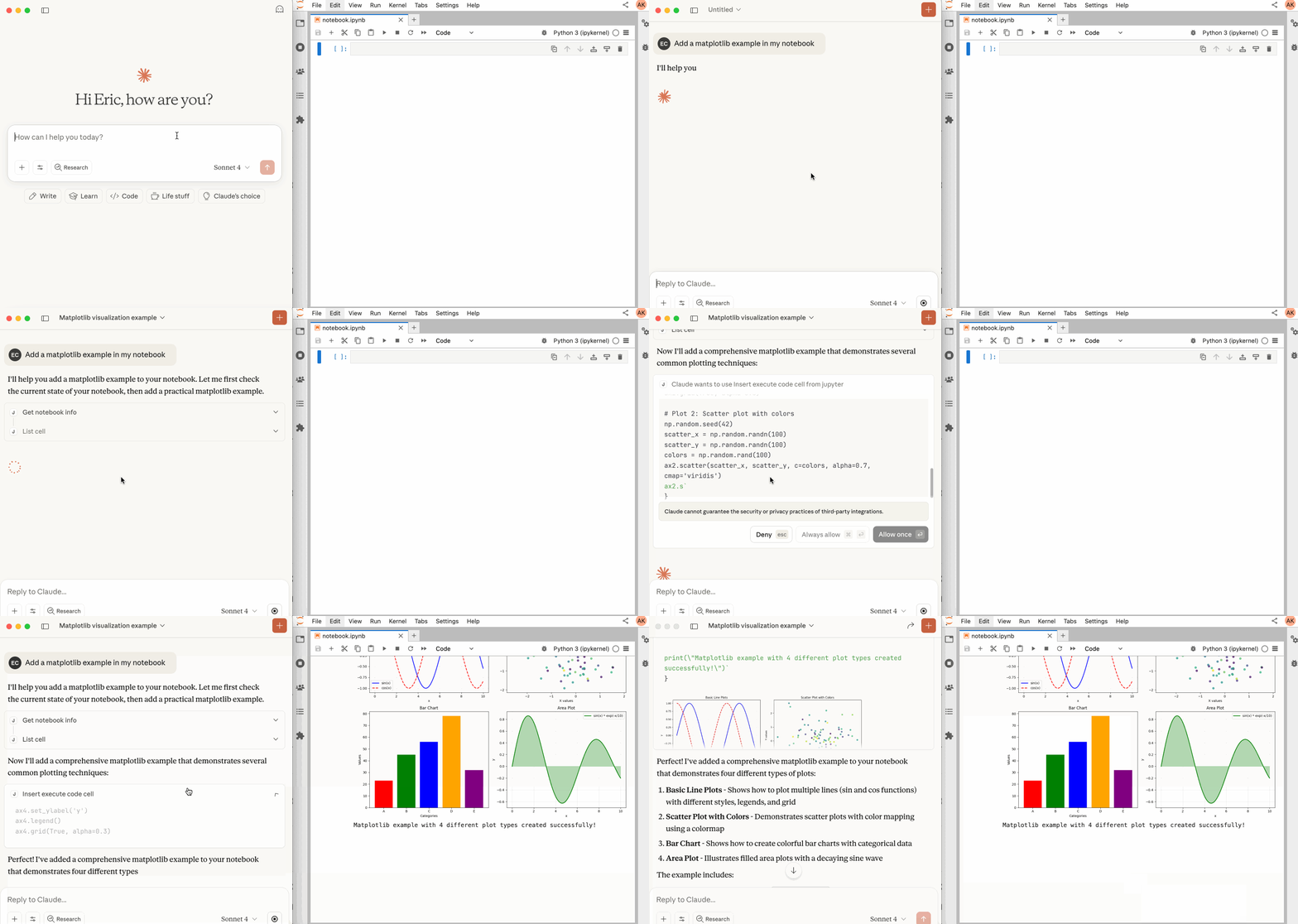
An MCP server that enables AI to connect and manage Jupyter Notebooks in real-time, with support for cell operations, execution, and multimodal outputs.
README
<!-- ~ Copyright (c) 2024- Datalayer, Inc. ~ ~ BSD 3-Clause License -->


<div align="center">
<!-- omit in toc -->
🪐🔧 Jupyter MCP Server
An MCP server developed for AI to connect and manage Jupyter Notebooks in real-time
Developed by Datalayer




</div>
[!NOTE] We Need Your Feedback!
We're actively developing support for JupyterHub and Google Colab deployments. If you're using or planning to use Jupyter MCP Server with these platforms, we'd love to hear from you!
- 🏢 JupyterHub users: Share your deployment setup and requirements
- 🌐 Google Colab users: Help us understand your use cases and workflows
Join the conversation in our Community page - your feedback will help us prioritize features and ensure these integrations work seamlessly for your needs.
📖 Table of Contents
🚀 Key Features
- ⚡ Real-time control: Instantly view notebook changes as they happen.
- 🔁 Smart execution: Automatically adjusts when a cell run fails thanks to cell output feedback.
- 🧠 Context-aware: Understands the entire notebook context for more relevant interactions.
- 📊 Multimodal support: Support different output types, including images, plots, and text.
- 📚 Multi-notebook support: Seamlessly switch between multiple notebooks.
- 🎨 JupyterLab integration: Enhanced UI integration like automatic notebook opening.
- 🤝 MCP-compatible: Works with any MCP client, such as Claude Desktop, Cursor, Windsurf, and more.
Compatible with any Jupyter deployment (local, JupyterHub, ...) and with Datalayer hosted Notebooks.
🔧 MCP Overview
🔧 Tools Overview
The server provides a rich set of tools for interacting with Jupyter notebooks, categorized as follows. For more details on each tool, their parameters, and return values, please refer to the official Tools documentation.
Server Management Tools
| Name | Description |
|---|---|
list_files |
List files and directories in the Jupyter server's file system. |
list_kernels |
List all available and running kernel sessions on the Jupyter server. |
connect_to_jupyter |
Connect to a Jupyter server dynamically without restarting the MCP server. Not available when running as Jupyter extension. Useful for switching servers dynamically or avoiding hardcoded configuration. Read more |
Multi-Notebook Management Tools
| Name | Description |
|---|---|
use_notebook |
Connect to a notebook file, create a new one, or switch between notebooks. |
list_notebooks |
List all notebooks available on the Jupyter server and their status |
restart_notebook |
Restart the kernel for a specific managed notebook. |
unuse_notebook |
Disconnect from a specific notebook and release its resources. |
read_notebook |
Read notebook cells source content with brief or detailed format options. |
Cell Operations and Execution Tools
| Name | Description |
|---|---|
read_cell |
Read the full content (Metadata, Source and Outputs) of a single cell. |
insert_cell |
Insert a new code or markdown cell at a specified position. |
delete_cell |
Delete a cell at a specified index. |
overwrite_cell_source |
Overwrite the source code of an existing cell. |
execute_cell |
Execute a cell with timeout, supports multimodal output including images. |
insert_execute_code_cell |
Insert a new code cell and execute it in one step. |
execute_code |
Execute code directly in the kernel, supports magic commands and shell commands. |
JupyterLab Integration
Available only when JupyterLab mode is enabled. It is enabled by default.
When running in JupyterLab mode, Jupyter MCP Server integrates with jupyter-mcp-tools to expose additional JupyterLab commands as MCP tools. By default, the following tools are enabled:
| Name | Description |
|---|---|
notebook_run-all-cells |
Execute all cells in the current notebook sequentially |
notebook_get-selected-cell |
Get information about the currently selected cell |
<details> <summary><strong>📚 Learn how to customize additional tools</strong></summary>
You can now customize which tools from jupyter-mcp-tools are available using the allowed_jupyter_mcp_tools configuration parameter. This allows you to enable additional notebook operations, console commands, file management tools, and more.
# Example: Enable additional tools via command-line
jupyter lab --port 4040 --IdentityProvider.token MY_TOKEN --JupyterMCPServerExtensionApp.allowed_jupyter_mcp_tools="notebook_run-all-cells,notebook_get-selected-cell,notebook_append-execute,console_create"
For the complete list of available tools and detailed configuration instructions, please refer to the Additional Tools documentation.
</details>
📝 Prompt Overview
The server also supports prompt feature of MCP, providing a easy way for user to interact with Jupyter notebooks.
| Name | Description |
|---|---|
jupyter-cite |
Cite specific cells from specified notebook (like @ in Coding IDE or CLI) |
For more details on each prompt, their input parameters, and return content, please refer to the official Prompt documentation.
🏁 Getting Started
For comprehensive setup instructions—including Streamable HTTP transport, running as a Jupyter Server extension and advanced configuration—check out our documentation. Or, get started quickly with JupyterLab and STDIO transport here below.
1. Set Up Your Environment
pip install jupyterlab==4.4.1 jupyter-collaboration==4.0.2 jupyter-mcp-tools>=0.1.4 ipykernel
pip uninstall -y pycrdt datalayer_pycrdt
pip install datalayer_pycrdt==0.12.17
[!TIP] To confirm your environment is correctly configured:
- Open a notebook in JupyterLab
- Type some content in any cell (code or markdown)
- Observe the tab indicator: you should see an "×" appear next to the notebook name, indicating unsaved changes
- Wait a few seconds—the "×" should automatically change to a "●" without manually saving
This automatic saving behavior confirms that the real-time collaboration features are working properly, which is essential for MCP server integration.
2. Start JupyterLab
# Start JupyterLab on port 8888, allowing access from any IP and setting a token
jupyter lab --port 8888 --IdentityProvider.token MY_TOKEN --ip 0.0.0.0
[!NOTE] If you are running notebooks through JupyterHub instead of JupyterLab as above, refer to our JupyterHub setup guide.
3. Configure Your Preferred MCP Client
Next, configure your MCP client to connect to the server. We offer two primary methods—choose the one that best fits your needs:
- 📦 Using
uvx(Recommended for Quick Start): A lightweight and fast method usinguv. Ideal for local development and first-time users. - 🐳 Using
Docker(Recommended for Production): A containerized approach that ensures a consistent and isolated environment, perfect for production or complex setups.
<details> <summary><b>📦 Using uvx (Quick Start)</b></summary>
First, install uv:
pip install uv
uv --version
# should be 0.6.14 or higher
See more details on uv installation.
Then, configure your client:
{
  "mcpServers": {
    "jupyter": {
      "command": "uvx",
      "args": ["jupyter-mcp-server@latest"],
      "env": {
        "JUPYTER_URL": "http://localhost:8888",
        "JUPYTER_TOKEN": "MY_TOKEN",
        "ALLOW_IMG_OUTPUT": "true"
      }
    }
  }
}
</details>
<details> <summary><b>🐳 Using Docker (Production)</b></summary>
On macOS and Windows:
{
  "mcpServers": {
    "jupyter": {
      "command": "docker",
      "args": [
        "run", "-i", "--rm",
        "-e", "JUPYTER_URL",
        "-e", "JUPYTER_TOKEN",
        "-e", "ALLOW_IMG_OUTPUT",
        "datalayer/jupyter-mcp-server:latest"
      ],
      "env": {
        "JUPYTER_URL": "http://host.docker.internal:8888",
        "JUPYTER_TOKEN": "MY_TOKEN",
        "ALLOW_IMG_OUTPUT": "true"
      }
    }
  }
}
On Linux:
{
  "mcpServers": {
    "jupyter": {
      "command": "docker",
      "args": [
        "run", "-i", "--rm",
        "-e", "JUPYTER_URL",
        "-e", "JUPYTER_TOKEN",
        "-e", "ALLOW_IMG_OUTPUT",
        "--network=host",
        "datalayer/jupyter-mcp-server:latest"
      ],
      "env": {
        "JUPYTER_URL": "http://localhost:8888",
        "JUPYTER_TOKEN": "MY_TOKEN",
        "ALLOW_IMG_OUTPUT": "true"
      }
    }
  }
}
</details>
[!TIP]
- Port Configuration: Ensure the
portin your Jupyter URLs matches the one used in thejupyter labcommand. For simplified config, set this inJUPYTER_URL.- Server Separation: Use
JUPYTER_URLwhen both services are on the same server, or set individual variables for advanced deployments. The different URL variables exist because some deployments separate notebook storage (DOCUMENT_URL) from kernel execution (RUNTIME_URL).- Authentication: In most cases, document and runtime services use the same authentication token. Use
JUPYTER_TOKENfor simplified config or setDOCUMENT_TOKENandRUNTIME_TOKENindividually for different credentials.- Notebook Path: The
DOCUMENT_IDparameter specifies the path to the notebook the MCP client default to connect. It should be relative to the directory where JupyterLab was started. If you omitDOCUMENT_ID, the MCP client can automatically list all available notebooks on the Jupyter server, allowing you to select one interactively via your prompts.- Image Output: Set
ALLOW_IMG_OUTPUTtofalseif your LLM does not support mutimodel understanding.
For detailed instructions on configuring various MCP clients—including Claude Desktop, VS Code, Cursor, Cline, and Windsurf — see the Clients documentation.
✅ Best Practices
- Interact with LLMs that supports multimodal input (like Gemini 2.5 Pro) to fully utilize advanced multimodal understanding capabilities.
- Use a MCP client that supports returning image data and can parse it (like Cursor, Gemini CLI, etc.), as some clients may not support this feature.
- Break down complex task (like the whole data science workflow) into multiple sub-tasks (like data cleaning, feature engineering, model training, model evaluation, etc.) and execute them step-by-step.
- Provide clearly structured prompts and rules (👉 Visit our Prompt Templates to get started)
- Provide as much context as possible (like already installed packages, field explanations for existing datasets, current working directory, detailed task requirements, etc.).
🤝 Contributing
We welcome contributions of all kinds! Here are some examples:
- 🐛 Bug fixes
- 📝 Improvements to existing features
- 🔧 New feature development
- 📚 Documentation improvements and prompt templates
For detailed instructions on how to get started with development and submit your contributions, please see our Contributing Guide.
Our Contributors
📚 Resources
Looking for blog posts, videos, or other materials about Jupyter MCP Server?
👉 Visit the Resources section in our documentation for more!
<div align="center">
If this project is helpful to you, please give us a ⭐️
Made with ❤️ by Datalayer
</div>
Recommended Servers

playwright-mcp
A Model Context Protocol server that enables LLMs to interact with web pages through structured accessibility snapshots without requiring vision models or screenshots.

Magic Component Platform (MCP)
An AI-powered tool that generates modern UI components from natural language descriptions, integrating with popular IDEs to streamline UI development workflow.

Audiense Insights MCP Server
Enables interaction with Audiense Insights accounts via the Model Context Protocol, facilitating the extraction and analysis of marketing insights and audience data including demographics, behavior, and influencer engagement.

VeyraX MCP
Single MCP tool to connect all your favorite tools: Gmail, Calendar and 40 more.

graphlit-mcp-server
The Model Context Protocol (MCP) Server enables integration between MCP clients and the Graphlit service. Ingest anything from Slack to Gmail to podcast feeds, in addition to web crawling, into a Graphlit project - and then retrieve relevant contents from the MCP client.

Kagi MCP Server
An MCP server that integrates Kagi search capabilities with Claude AI, enabling Claude to perform real-time web searches when answering questions that require up-to-date information.

E2B
Using MCP to run code via e2b.

Neon Database
MCP server for interacting with Neon Management API and databases

Exa Search
A Model Context Protocol (MCP) server lets AI assistants like Claude use the Exa AI Search API for web searches. This setup allows AI models to get real-time web information in a safe and controlled way.

Qdrant Server
This repository is an example of how to create a MCP server for Qdrant, a vector search engine.