
intervals-icu-mcp
Read/write MCP server for Intervals.icu — 51 tools spanning activities, streams, wellness, calendar, gear, and sport zones, plus structured workout generation with a built-in syntax reference for cycling, running, and swimming.
README
<!-- mcp-name: io.github.hhopke/intervals-icu-mcp -->
Intervals.icu MCP Server
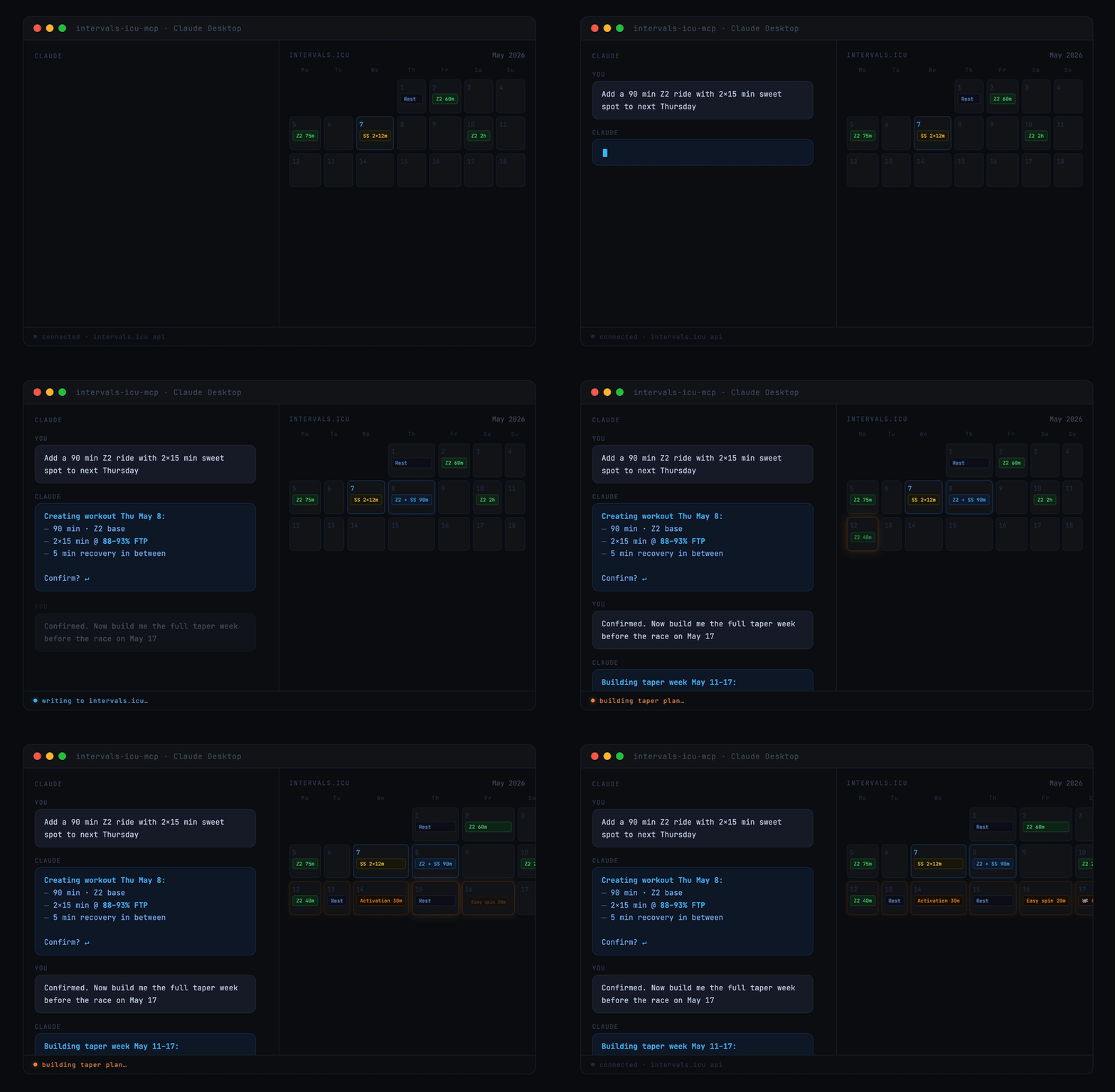
A Model Context Protocol (MCP) server for Intervals.icu integration. Access your training data, wellness metrics, and performance analysis through Claude, ChatGPT, and other LLMs.
Originally based on eddmann/intervals-icu-mcp (MIT licensed). This project is an independent continuation with significant bug fixes and new features — see CHANGELOG.md for details.



Overview
58 tools spanning activities, activity analysis, activity messages, athlete profile, wellness, events/calendar, performance curves, workout library, gear, sport settings, and custom items — plus 4 MCP Resources (athlete profile, workout syntax, event categories, custom item schemas) and 7 MCP Prompts (training analysis, recovery check, weekly planning, and more). See Available Tools for the per-category breakdown.
Quick Start
Running with Claude Desktop, in 30 seconds:
- Get your API key and athlete ID
- Add this to your Claude Desktop config:
{
  "mcpServers": {
    "intervals-icu": {
      "command": "uvx",
      "args": ["intervals-icu-mcp"],
      "env": {
        "INTERVALS_ICU_API_KEY": "your-api-key-here",
        "INTERVALS_ICU_ATHLETE_ID": "i123456"
      }
    }
  }
}
- Restart Claude and ask "Show me my activities from the last 7 days."
Prefer Claude Code, Cursor, or ChatGPT? See Client Configuration. Want to run from source or with Docker? See Installation & Setup.
Prerequisites
Install uv — it handles Python, dependencies, and execution in one tool. brew install uv on macOS/Linux, or powershell -c "irm https://astral.sh/uv/install.ps1 | iex" on Windows. From there, uvx fetches Python and the package automatically. Docker is also supported as an alternative.
Intervals.icu API Key Setup
Before installation, obtain your Intervals.icu API key:
- Go to https://intervals.icu/settings → Developer → Create API Key.
- Copy the key, and note your Athlete ID from your profile URL (format:
i123456).
Installation
Nothing to install separately if you use the recommended setup. uvx (which ships with uv) automatically downloads and caches the intervals-icu-mcp package the first time your MCP client launches it — just paste the config snippet from Client Configuration into your client and you're done.
<details> <summary><b>Alternative: from source</b> — for development or local modifications</summary>
git clone https://github.com/hhopke/intervals-icu-mcp.git
cd intervals-icu-mcp
uv sync
uv run intervals-icu-mcp-auth  # interactive credential setup; or create .env manually:
#   INTERVALS_ICU_API_KEY=your_api_key_here
#   INTERVALS_ICU_ATHLETE_ID=i123456
Then point your MCP client at this checkout — see the From source snippet inside each client below.
</details>
<details> <summary><b>Alternative: Docker</b></summary>
docker build -t intervals-icu-mcp .

# Interactive credential setup (creates intervals-icu-mcp.env in the current directory):
touch intervals-icu-mcp.env  # pre-create the file so Docker mounts it as a file, not a dir
docker run -it --rm \
  -v "$(pwd)/intervals-icu-mcp.env:/app/.env" \
  --entrypoint= intervals-icu-mcp:latest \
  python -m intervals_icu_mcp.scripts.setup_auth
Or create intervals-icu-mcp.env manually (same format as the .env above).
Then point your MCP client at the Docker image — see the Docker snippet inside each client below.
</details>
Client Configuration
The server speaks MCP over stdio and works with any compliant client. Click a client to expand. If you followed Quick Start (uvx), use the first config block; if you used the source or Docker alternative above, use the matching variant inside the same collapsible.
<details> <summary><b>Claude Desktop</b></summary>
Add to your configuration file:
- macOS:
~/Library/Application Support/Claude/claude_desktop_config.json - Windows:
%APPDATA%\Claude\claude_desktop_config.json
{
  "mcpServers": {
    "intervals-icu": {
      "command": "uvx",
      "args": ["intervals-icu-mcp"],
      "env": {
        "INTERVALS_ICU_API_KEY": "your-api-key-here",
        "INTERVALS_ICU_ATHLETE_ID": "i123456"
      }
    }
  }
}
From source (requires git clone + uv sync + uv run intervals-icu-mcp-auth):
{
  "mcpServers": {
    "intervals-icu": {
      "command": "uv",
      "args": ["run", "--directory", "/ABSOLUTE/PATH/TO/intervals-icu-mcp", "intervals-icu-mcp"]
    }
  }
}
Docker:
{
  "mcpServers": {
    "intervals-icu": {
      "command": "docker",
      "args": ["run", "-i", "--rm", "-v", "/ABSOLUTE/PATH/TO/intervals-icu-mcp.env:/app/.env", "intervals-icu-mcp:latest"]
    }
  }
}
</details>
<details> <summary><b>Claude Code</b></summary>
Register the server as a user-scoped MCP server:
claude mcp add intervals-icu --scope user \
  --env INTERVALS_ICU_API_KEY=your-key \
  --env INTERVALS_ICU_ATHLETE_ID=i123456 \
  -- uvx intervals-icu-mcp
Then in any Claude Code session, run /mcp to confirm intervals-icu is connected.
</details>
<details> <summary><b>Cursor</b></summary>
Add to ~/.cursor/mcp.json (or the project-local .cursor/mcp.json):
{
  "mcpServers": {
    "intervals-icu": {
      "command": "uvx",
      "args": ["intervals-icu-mcp"],
      "env": {
        "INTERVALS_ICU_API_KEY": "your-api-key-here",
        "INTERVALS_ICU_ATHLETE_ID": "i123456"
      }
    }
  }
}
Restart Cursor and open Settings → MCP to verify the server is listed.
</details>
<details> <summary><b>ChatGPT</b> — requires a paid plan, Developer Mode, and a publicly reachable URL <em>(walkthrough not yet verified end-to-end)</em></summary>
ChatGPT's custom MCP connector flow requires running the server over HTTP and exposing it via a tunnel, then registering the URL in ChatGPT's Developer Mode settings. See docs/chatgpt-connector.md for the full walkthrough, plan-tier requirements, and security notes.
</details>
Delete Safety Mode
Destructive tools are gated by the optional INTERVALS_ICU_DELETE_MODE env var (safe / full / none, default safe). The gate is server-side and outside the model's reach — tools that aren't registered cannot be invoked. Safe mode refuses past-event deletion and gates delete_activity / delete_sport_settings / delete_custom_item entirely. See docs/tools.md for the full table, response envelope, and TZ-buffer rationale.
Remote Deployment (HTTP / SSE)
By default the server runs over stdio — the right transport for local clients like Claude Desktop, Claude Code, and Cursor. For remote deployment (hosted MCP, reverse proxy, Docker-on-a-server, ChatGPT connector), pass --transport:
# Streamable HTTP (recommended — used by ChatGPT and modern remote clients)
intervals-icu-mcp --transport http --host 127.0.0.1 --port 8000

# Legacy SSE (for clients that haven't moved to streamable HTTP yet)
intervals-icu-mcp --transport sse --host 127.0.0.1 --port 8000
| Flag | Default | Description |
|---|---|---|
--transport |
stdio |
One of stdio, http, sse, streamable-http |
--host |
127.0.0.1 |
Interface to bind. Use 0.0.0.0 only inside a container where Docker controls the exposure. |
--port |
8000 |
TCP port |
--path |
(framework default) | URL path to mount the server under |
⚠️ Security: do not expose an HTTP-mode server to untrusted networks.
The MCP protocol has no built-in authentication. Anyone who can reach the URL can exercise every tool with your credentials — read every activity, delete activities, modify your FTP, create calendar events, etc. Binding to
0.0.0.0on a direct-exposed host (VPS, LAN with open port) is equivalent to publishing your Intervals.icu API key.For remote access, prefer one of the following:
- Tailscale / Cloudflare Tunnel / ZeroTier — only your authenticated devices can reach the endpoint. Zero code changes, simplest option.
- Reverse proxy with auth (nginx + basic auth, Cloudflare Access, etc.) — terminates TLS and gates access.
- SSH tunnel —
ssh -L 8000:localhost:8000 hostif you just need occasional access from one machine.Credentials are always read from
INTERVALS_ICU_API_KEYandINTERVALS_ICU_ATHLETE_ID— use env vars (not a committed.env) when deploying to a shared host.
Usage
Ask Claude to interact with your Intervals.icu data in natural language. A few starter prompts:
"Show me my activities from the last 30 days"
"Am I overtraining? Check my CTL, ATL, and TSB"
"How's my recovery this week? Show HRV and sleep trends"
"Create a sweet spot cycling workout for tomorrow"
"What's my 20-minute power and FTP?"
For the full catalogue of example prompts by category, see docs/examples.md.
Available Tools
58 tools, 4 resources, and 7 prompt templates. One-line summary below — full reference in docs/tools.md.
| Category | Tools | Summary |
|---|---|---|
| Activities | 12 | Query, search, update, delete, download activities |
| Activity Analysis | 8 | Streams, intervals, best efforts, histograms |
| Activity Messages | 2 | Read and post notes/comments/coach feedback on activities |
| Athlete | 2 | Profile and CTL/ATL/TSB fitness analysis |
| Wellness | 3 | HRV, sleep, recovery metrics |
| Events / Calendar | 10 | Planned workouts, races, notes (bulk ops supported) |
| Performance / Curves | 3 | Power, HR, and pace curves with zones |
| Workout Library | 2 | Browse workout folders and training plans |
| Gear Management | 6 | Track equipment and maintenance reminders |
| Sport Settings | 5 | FTP, FTHR, pace thresholds, and zones |
| Custom Items | 5 | User customizations: custom charts, fields, zones, dashboard panels |
Documentation
- Example prompts — full catalogue of natural-language prompts by category
- Tool reference — complete tool, resource, and prompt inventory
- Architecture overview — how the server, middleware, client, and tools fit together
- Testing guide — conventions for pytest + respx, fixtures, and running the suite
- Changelog — release history
- Adding a new tool — step-by-step workflow for contributors
Contributing
Issues and pull requests are welcome. Before opening a PR, run make can-release locally to match what CI enforces (ruff, pyright, pytest). For new tools, follow the pattern in .claude/skills/add-tool/SKILL.md and add a respx-mocked test file alongside the implementation.
License
MIT License - see the LICENSE file for details.
Disclaimer
This project is not affiliated with, endorsed by, or sponsored by Intervals.icu. All product names, logos, and brands are property of their respective owners.
Recommended Servers

playwright-mcp
A Model Context Protocol server that enables LLMs to interact with web pages through structured accessibility snapshots without requiring vision models or screenshots.

Audiense Insights MCP Server
Enables interaction with Audiense Insights accounts via the Model Context Protocol, facilitating the extraction and analysis of marketing insights and audience data including demographics, behavior, and influencer engagement.

Magic Component Platform (MCP)
An AI-powered tool that generates modern UI components from natural language descriptions, integrating with popular IDEs to streamline UI development workflow.

VeyraX MCP
Single MCP tool to connect all your favorite tools: Gmail, Calendar and 40 more.

graphlit-mcp-server
The Model Context Protocol (MCP) Server enables integration between MCP clients and the Graphlit service. Ingest anything from Slack to Gmail to podcast feeds, in addition to web crawling, into a Graphlit project - and then retrieve relevant contents from the MCP client.

Kagi MCP Server
An MCP server that integrates Kagi search capabilities with Claude AI, enabling Claude to perform real-time web searches when answering questions that require up-to-date information.

E2B
Using MCP to run code via e2b.

Neon Database
MCP server for interacting with Neon Management API and databases

Exa Search
A Model Context Protocol (MCP) server lets AI assistants like Claude use the Exa AI Search API for web searches. This setup allows AI models to get real-time web information in a safe and controlled way.

Qdrant Server
This repository is an example of how to create a MCP server for Qdrant, a vector search engine.