
Google Autocomplete API
Enables AI agents to fetch Google autocomplete suggestions for partial queries, returning ranked results as clean JSON. Supports batch queries, localization, and integration with place lookups.
README
🔎 Google Autocomplete API: search and place suggestions as clean JSON
The most efficient, reliable, and developer-friendly way to use the Google Autocomplete API.
Actor page: apify.com/johnvc/google-autocomplete-api Input schema: apify.com/johnvc/google-autocomplete-api/input-schema
Get the autocomplete suggestions Google shows as you type, for any query, as clean structured JSON. Pass one or many partial queries and get the ranked suggestion list for each. For location and place queries, these act as fast place suggestions you can pipe straight into a Maps or Places lookup. It is the lightweight front-end for query expansion, keyword research, and resolving partial searches.
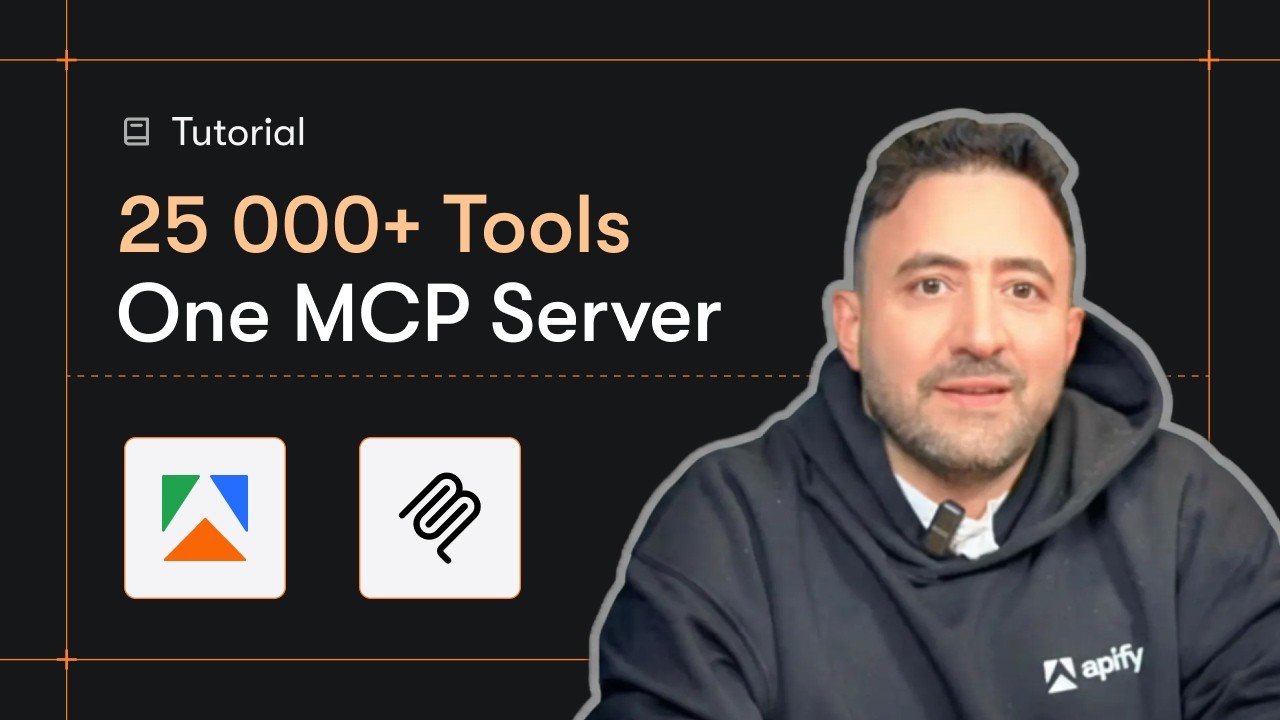
Video Walkthrough
Quick Start
Prerequisites
- Python 3.11 or higher
- An Apify account and API key (get a free key here)
-
Clone the repository
git clone https://github.com/johnisanerd/Google-Autocomplete-API.git cd Google-Autocomplete-API -
Install dependencies with UV
# Install UV if you do not have it: curl -LsSf https://astral.sh/uv/install.sh | sh # Install project dependencies: uv sync -
Configure your API key
cp .env.example .env # Edit .env and add your Apify API key # Get your free API key at: https://apify.com?fpr=9n7kx3 -
Run the example
uv run python google-autocomplete-api-example.py
Alternative: set the API key directly
export APIFY_API_TOKEN="your_api_key_here"
uv run python google-autocomplete-api-example.py
Why Use This Google Autocomplete API?
Real suggestions, not guesses. These are the exact phrases Google offers in its type-ahead box, ranked by likelihood.
Clean, structured output. Every suggestion is one row with its source query and rank, ready to load into a dataframe, a keyword tool, or an AI pipeline.
Built for batch work. Pass many seed queries and expand them all in one run.
MCP-ready. AI agents can call it as a tool through the hosted Apify MCP server to resolve a vague user request into concrete queries.
Features
Core Capabilities
- Autocomplete suggestions for one or many queries
- About ten ranked suggestions per query
- Localized by country and language
- A fast front-end for place queries before a Maps or Places lookup
Data Quality
- One clean row per suggestion, tagged with its source query and rank
- Stable JSON shape, easy to load anywhere
Usage Examples
Basic Example
{
  "queries": ["coffee near"]
}
Advanced Example
{
  "queries": ["coffee near", "best pizza in", "things to do in"],
  "gl": "us",
  "hl": "en"
}
Input Parameters
| Parameter | Type | Required | Default | Description |
|---|---|---|---|---|
queries |
list[str] |
YES | - | One or more partial queries, e.g. coffee near. Each is completed independently. |
gl |
str |
no | "us" |
Two-letter country code, e.g. us, gb, de. |
hl |
str |
no | "en" |
Two-letter language code, e.g. en, es, de. |
Output Format
Each item in the dataset is one suggestion:
{
  "query": "coffee near",
  "position": 1,
  "value": "coffee near me"
}
<!-- The five install sections below are the canonical MCP install copy. -->
Install in Claude Cowork Desktop
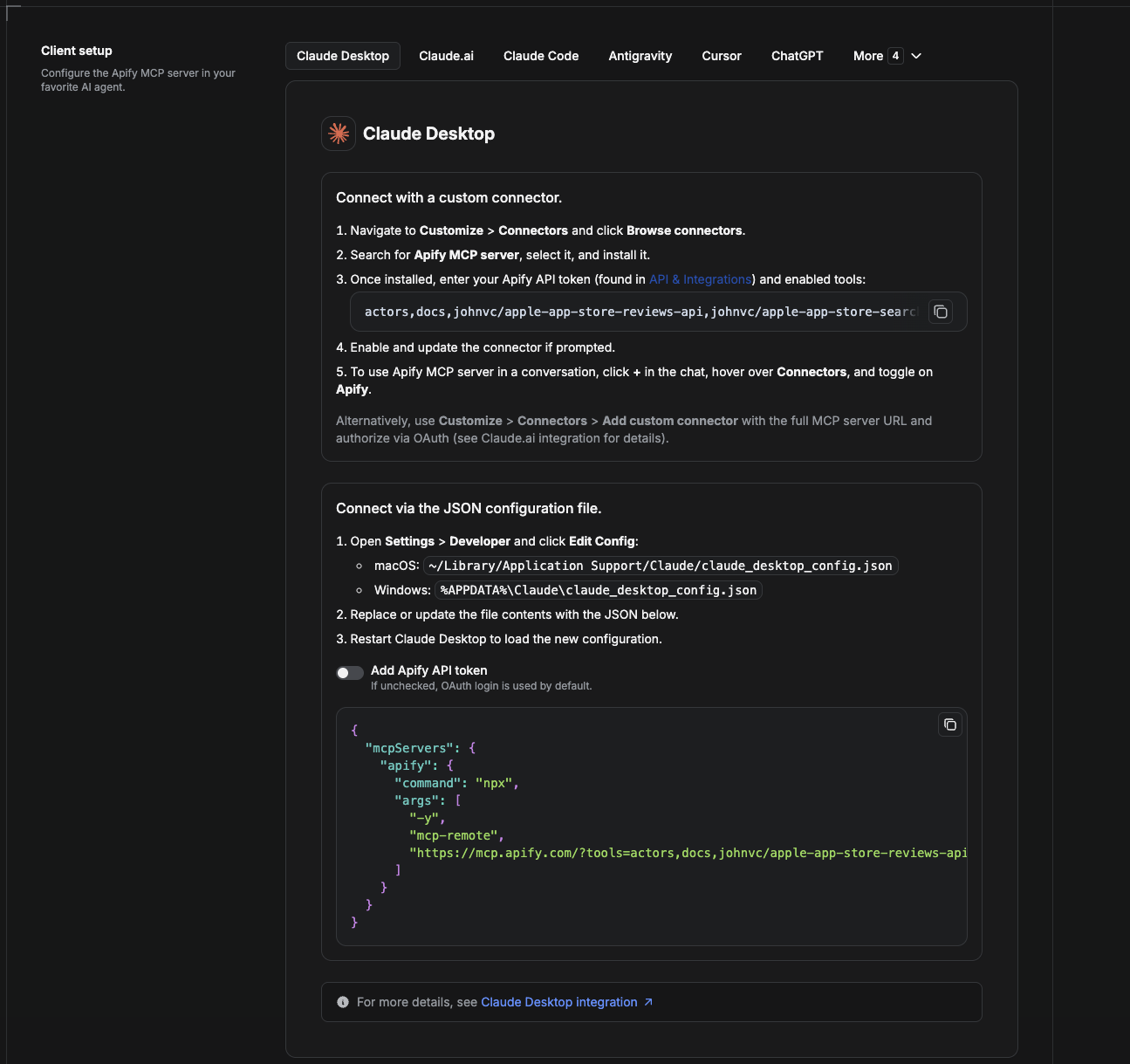
Cowork is the desktop app's automation mode. To give it the Google Autocomplete API as a tool, add the Apify MCP server as a connector.
- Open the Claude desktop app and go to Settings → Connectors (or Settings → Developer → Edit Config to edit
claude_desktop_config.jsondirectly).- macOS:
~/Library/Application Support/Claude/claude_desktop_config.json - Windows:
%APPDATA%\Claude\claude_desktop_config.json
- macOS:
- Add the Apify MCP server, preloaded with only this Actor:
{
  "mcpServers": {
    "apify": {
      "command": "npx",
      "args": [
        "-y",
        "mcp-remote",
        "https://mcp.apify.com/?tools=actors,docs,johnvc/google-autocomplete-api"
      ]
    }
  }
}
- Restart the app. When Cowork first calls the tool, complete the OAuth prompt in your browser, or add your Apify API token in the connector settings to skip OAuth.
- In a Cowork chat, confirm the tool is available and ask it to run the Google Autocomplete API.
Download the desktop app and start a free trial: https://claude.ai/referral/uIlpa7nPLg More help: https://docs.apify.com/platform/integrations/claude-desktop
Install in Claude Code
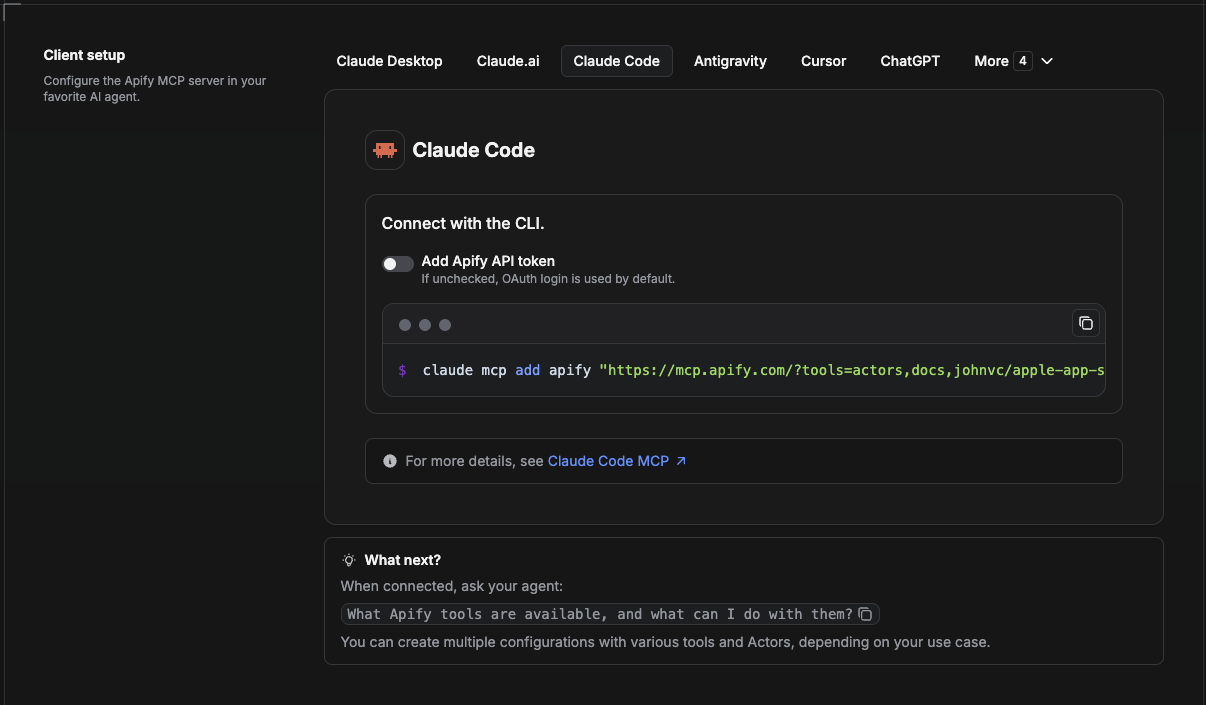
Claude Code is the command-line tool. Add the Actor's MCP server with one command:
claude mcp add --transport http apify \
  "https://mcp.apify.com/?tools=actors,docs,johnvc/google-autocomplete-api"
To use a token instead of browser OAuth:
claude mcp add --transport http apify \
  "https://mcp.apify.com/?tools=actors,docs,johnvc/google-autocomplete-api" \
  --header "Authorization: Bearer YOUR_APIFY_TOKEN"
Then verify with claude mcp list, or run /mcp inside a session. Ask Claude Code to call the Google Autocomplete API.
Try Claude Code free: https://claude.ai/referral/uIlpa7nPLg Claude Code MCP docs: https://code.claude.com/docs/en/mcp
Install in Claude (website)
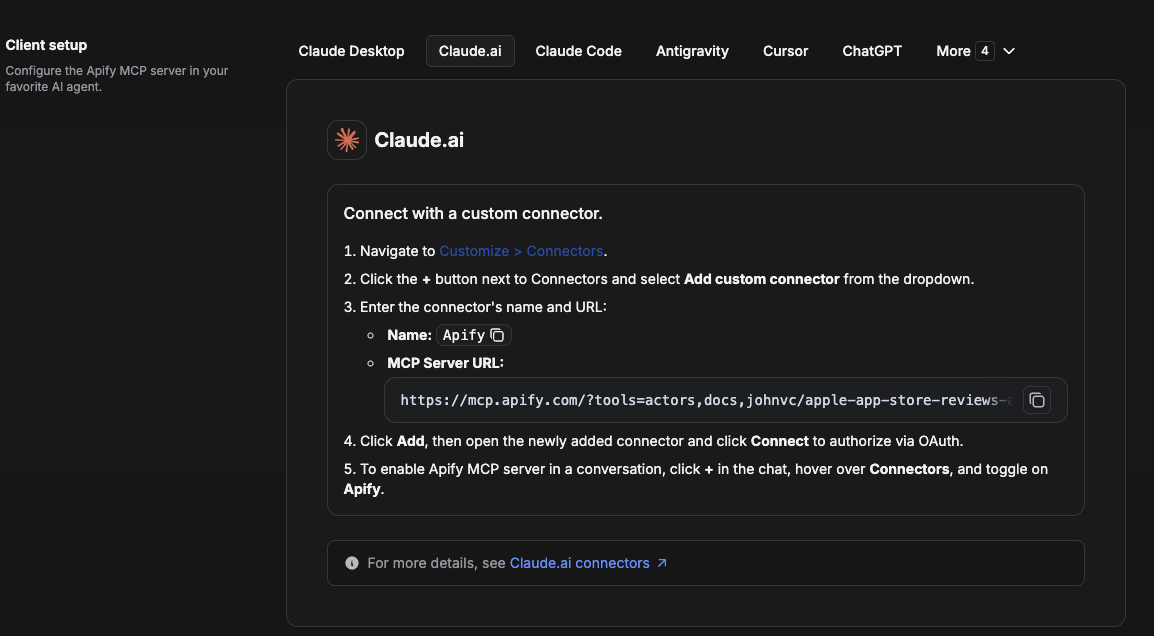
On claude.ai you add Apify as a connector, then enable just this Actor's tool.
- Go to Settings → Connectors → Browse connectors and search for Apify MCP server. Install it (enable or update if prompted).
- When connecting, authenticate with your Apify API token, and enable the tool
johnvc/google-autocomplete-api. - In any chat, open + → Connectors and turn on Apify.
- Alternatively, choose Add custom connector and paste the full MCP URL
https://mcp.apify.com/?tools=actors,docs,johnvc/google-autocomplete-api, using OAuth when prompted. - Ask Claude to run the Google Autocomplete API.
Open Claude on the web: https://claude.ai
Install in Cursor
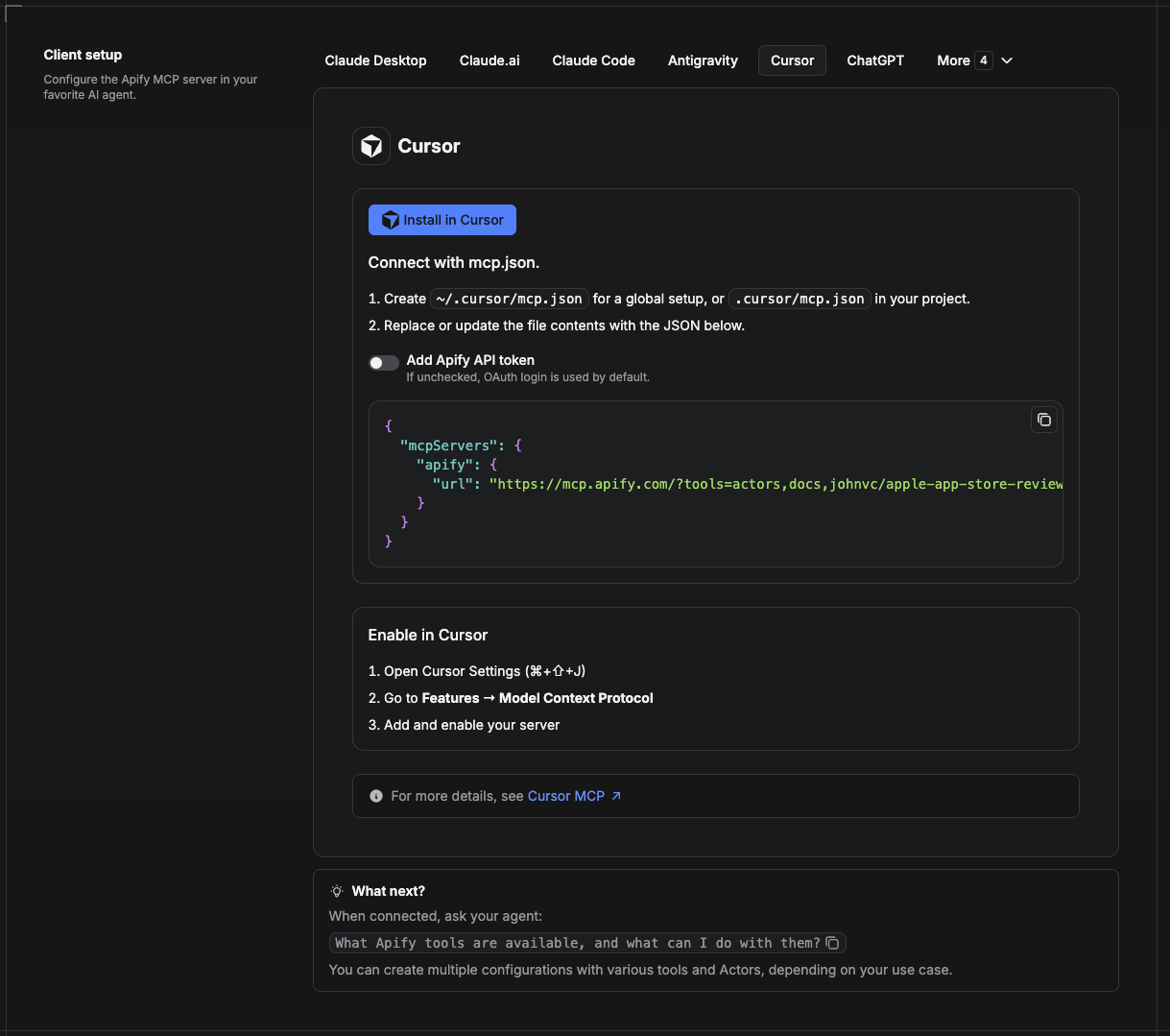
Cursor reads MCP servers from a project file at .cursor/mcp.json.
- In your project, create
.cursor/mcp.json:
{
  "mcpServers": {
    "apify": {
      "url": "https://mcp.apify.com/?tools=actors,docs,johnvc/google-autocomplete-api"
    }
  }
}
- If you prefer token auth over browser OAuth, add a header:
{
  "mcpServers": {
    "apify": {
      "url": "https://mcp.apify.com/?tools=actors,docs,johnvc/google-autocomplete-api",
      "headers": { "Authorization": "Bearer YOUR_APIFY_TOKEN" }
    }
  }
}
- Open Cursor → Settings → MCP and confirm the apify server is connected (green dot).
- In Composer or Chat, ask Cursor to call the Google Autocomplete API.
New to Cursor? Get it here: https://cursor.com/referral?code=XQP4VBLI3NNX
Install in ChatGPT
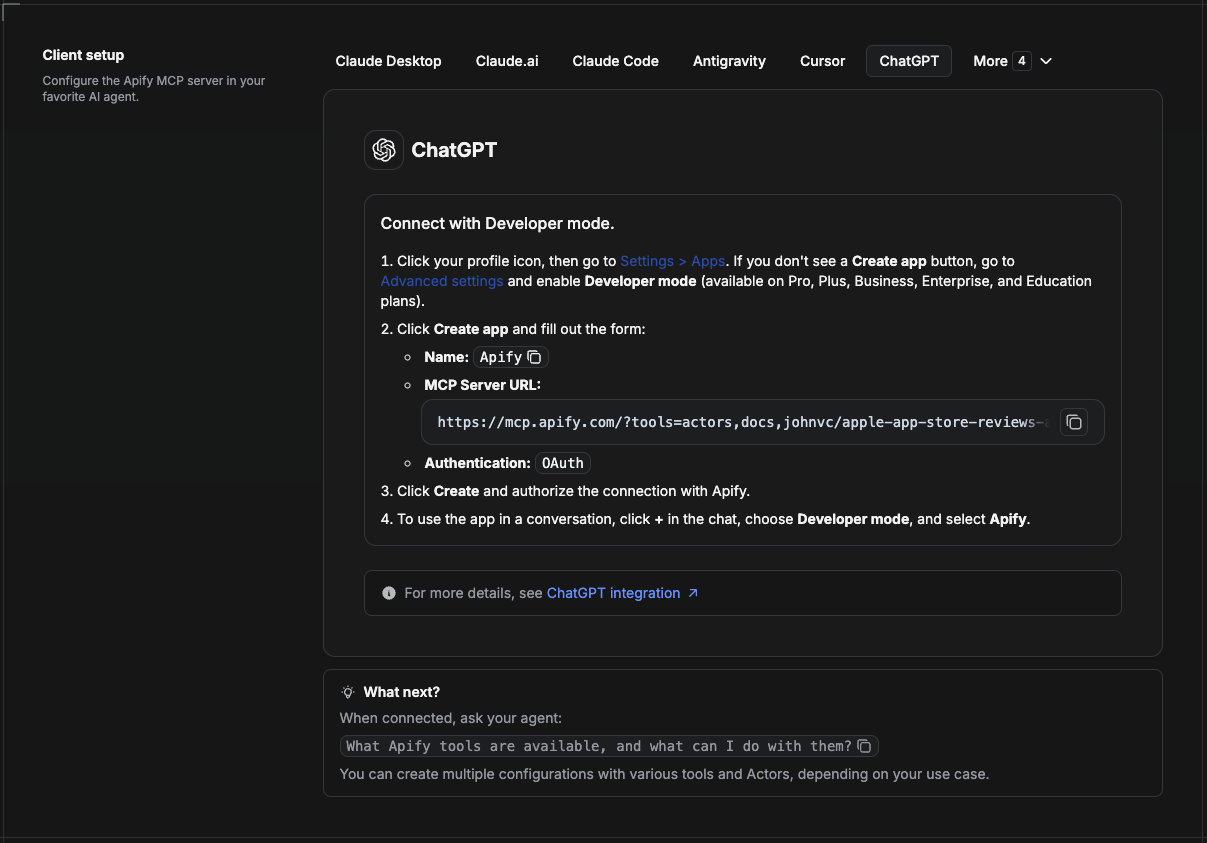
ChatGPT connects to the Apify MCP server through Developer mode (available on ChatGPT Pro, Plus, Business, Enterprise, and Education plans).
- Click your profile icon, then go to Settings > Apps. If you do not see a Create app button, open Advanced settings and enable Developer mode.
- Click Create app and fill out the form:
- Name: Apify
- MCP Server URL:
https://mcp.apify.com/?tools=actors,docs,johnvc/google-autocomplete-api - Authentication: OAuth
- Click Create and authorize the connection with Apify.
- To use the app in a conversation, click + in the chat, choose Developer mode, and select Apify.
More help: https://docs.apify.com/platform/integrations/mcp
Use the Google Autocomplete API to expand queries and power suggestions in your product or AI agent.
Last Updated: 2026.06.14
Recommended Servers

playwright-mcp
A Model Context Protocol server that enables LLMs to interact with web pages through structured accessibility snapshots without requiring vision models or screenshots.

Magic Component Platform (MCP)
An AI-powered tool that generates modern UI components from natural language descriptions, integrating with popular IDEs to streamline UI development workflow.

Audiense Insights MCP Server
Enables interaction with Audiense Insights accounts via the Model Context Protocol, facilitating the extraction and analysis of marketing insights and audience data including demographics, behavior, and influencer engagement.

VeyraX MCP
Single MCP tool to connect all your favorite tools: Gmail, Calendar and 40 more.

graphlit-mcp-server
The Model Context Protocol (MCP) Server enables integration between MCP clients and the Graphlit service. Ingest anything from Slack to Gmail to podcast feeds, in addition to web crawling, into a Graphlit project - and then retrieve relevant contents from the MCP client.

Kagi MCP Server
An MCP server that integrates Kagi search capabilities with Claude AI, enabling Claude to perform real-time web searches when answering questions that require up-to-date information.

E2B
Using MCP to run code via e2b.

Neon Database
MCP server for interacting with Neon Management API and databases

Exa Search
A Model Context Protocol (MCP) server lets AI assistants like Claude use the Exa AI Search API for web searches. This setup allows AI models to get real-time web information in a safe and controlled way.

Qdrant Server
This repository is an example of how to create a MCP server for Qdrant, a vector search engine.