
Figma MCP Server
Enables Cursor to access Figma design data via MCP, allowing it to fetch simplified layout and styling information to accurately implement designs from Figma files.
README
Figma MCP Server
Give Cursor access to your Figma files with this Model Context Protocol server.
When Cursor has access to Figma design data, it's way better at one-shotting designs accurately than alternative approaches like pasting screenshots.
Demo Video
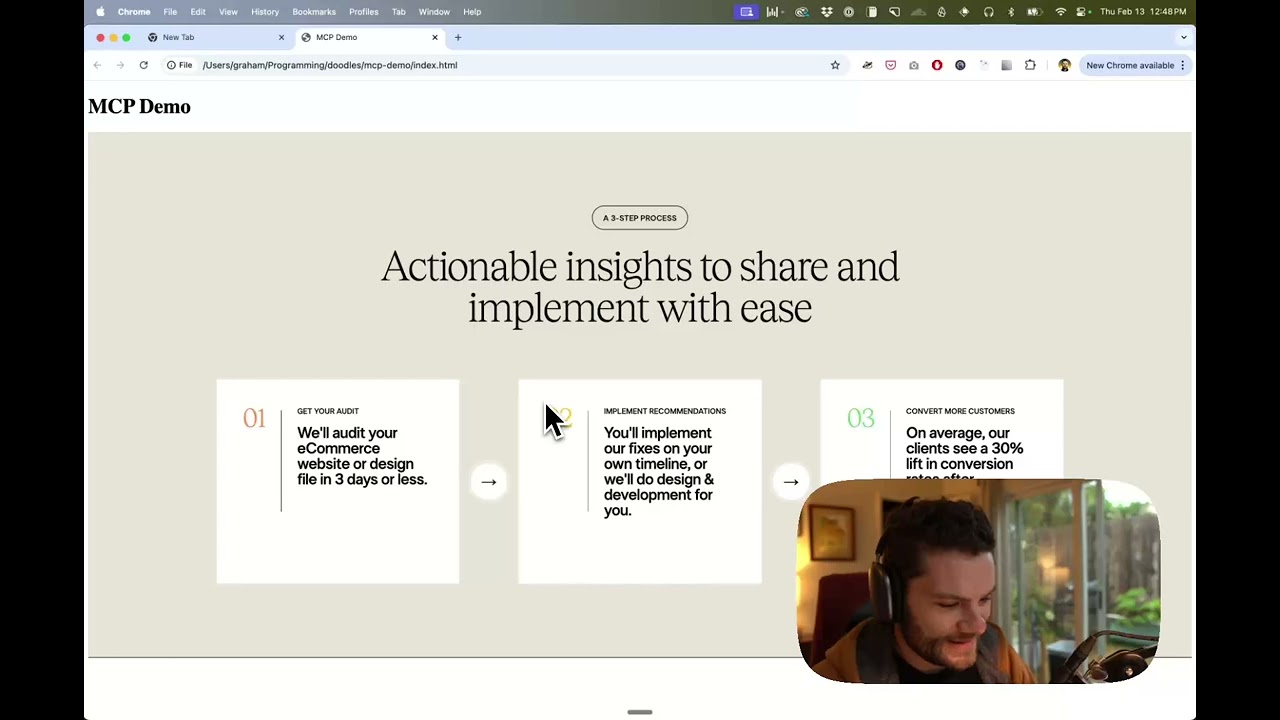
Watch a demo of building a UI in Cursor with Figma design data
<a href="https://glama.ai/mcp/servers/kcftotr525"><img width="380" height="200" src="https://glama.ai/mcp/servers/kcftotr525/badge" alt="Figma Server MCP server" /></a>
How it works
- Open Cursor's composer in agent mode.
- Paste a link to a Figma file, frame, or group.
- Ask Cursor to do something with the Figma file—e.g. implement a design.
- Cursor will fetch the relevant metadata from Figma and use it to write your code.
This MCP server is specifically designed for use with Cursor. Before responding with context from the Figma API, it simplifies and translates the response so only the most relevant layout and styling information is provided to the model.
Reducing the amount of context provided to the model helps make the AI more accurate and the responses more relevant.
Installation
- Clone the repository
- Install dependencies with
pnpm install - Copy
.env.exampleto.envand fill in your Figma API access token. Only read access is required.
Connecting to Cursor
Start the development server
> pnpm dev
# Initializing Figma MCP Server in HTTP mode on port 3333...
# HTTP server listening on port 3333
# SSE endpoint available at http://localhost:3333/sse
# Message endpoint available at http://localhost:3333/messages
Connect Cursor to the MCP server
Once the server is running, connect Cursor to the MCP server in Cursor's settings, under the features tab.

After the server has been connected, you can confirm Cursor's has a valid connection before getting started. If you get a green dot and the tools show up, you're good to go!

Start using Composer with your Figma designs
Once the MCP server is connected, you can start using the tools in Cursor's composer, as long as the composer is in agent mode.
Dropping a link to a Figma file in the composer and asking Cursor to do something with it should automatically trigger the get-file tool.
Most Figma files end up being huge, so you'll probably want to link to a specific frame or group within the file. With a single element selected, you can hit CMD + L to copy the link to the element. You can also find it in the context menu:

Once you have a link to a specific element, you can drop it in the composer and ask Cursor to do something with it.
Inspect Responses
To inspect responses from the MCP server more easily, you can run the inspect command, which launches the @modelcontextprotocol/inspector web UI for triggering tool calls and reviewing responses:
pnpm inspect
# > figma-mcp@0.1.0 inspect
# > pnpx @modelcontextprotocol/inspector
#
# Starting MCP inspector...
# Proxy server listening on port 3000
#
# 🔍 MCP Inspector is up and running at http://localhost:5173 🚀
Available Tools
The server provides the following MCP tools:
get-file
Fetches information about a Figma file.
Parameters:
fileKey(string): The key of the Figma file to fetchdepth(number, optional): How many levels deep to traverse the node tree
get-node
Fetches information about a specific node within a Figma file.
Parameters:
fileKey(string): The key of the Figma file containing the nodenodeId(string): The ID of the node to fetch
Recommended Servers

playwright-mcp
A Model Context Protocol server that enables LLMs to interact with web pages through structured accessibility snapshots without requiring vision models or screenshots.

Magic Component Platform (MCP)
An AI-powered tool that generates modern UI components from natural language descriptions, integrating with popular IDEs to streamline UI development workflow.

Audiense Insights MCP Server
Enables interaction with Audiense Insights accounts via the Model Context Protocol, facilitating the extraction and analysis of marketing insights and audience data including demographics, behavior, and influencer engagement.

VeyraX MCP
Single MCP tool to connect all your favorite tools: Gmail, Calendar and 40 more.

graphlit-mcp-server
The Model Context Protocol (MCP) Server enables integration between MCP clients and the Graphlit service. Ingest anything from Slack to Gmail to podcast feeds, in addition to web crawling, into a Graphlit project - and then retrieve relevant contents from the MCP client.

Kagi MCP Server
An MCP server that integrates Kagi search capabilities with Claude AI, enabling Claude to perform real-time web searches when answering questions that require up-to-date information.

Neon Database
MCP server for interacting with Neon Management API and databases

E2B
Using MCP to run code via e2b.

Exa Search
A Model Context Protocol (MCP) server lets AI assistants like Claude use the Exa AI Search API for web searches. This setup allows AI models to get real-time web information in a safe and controlled way.

Qdrant Server
This repository is an example of how to create a MCP server for Qdrant, a vector search engine.