
EdgeOne Pages MCP
Enables the deployment of HTML content, folders, and full-stack projects to EdgeOne Pages to generate publicly accessible URLs. It integrates with edge functions and KV storage to provide fast content delivery and supports custom domain configuration.
README
EdgeOne Pages MCP
An MCP service for deploying HTML content, folders, or full-stack projects to EdgeOne Pages and obtaining publicly accessible URLs.
<a href="https://glama.ai/mcp/servers/@TencentEdgeOne/edgeone-pages-mcp"> <img width="380" height="200" src="https://glama.ai/mcp/servers/@TencentEdgeOne/edgeone-pages-mcp/badge" alt="EdgeOne Pages MCP server" /> </a>
Demo
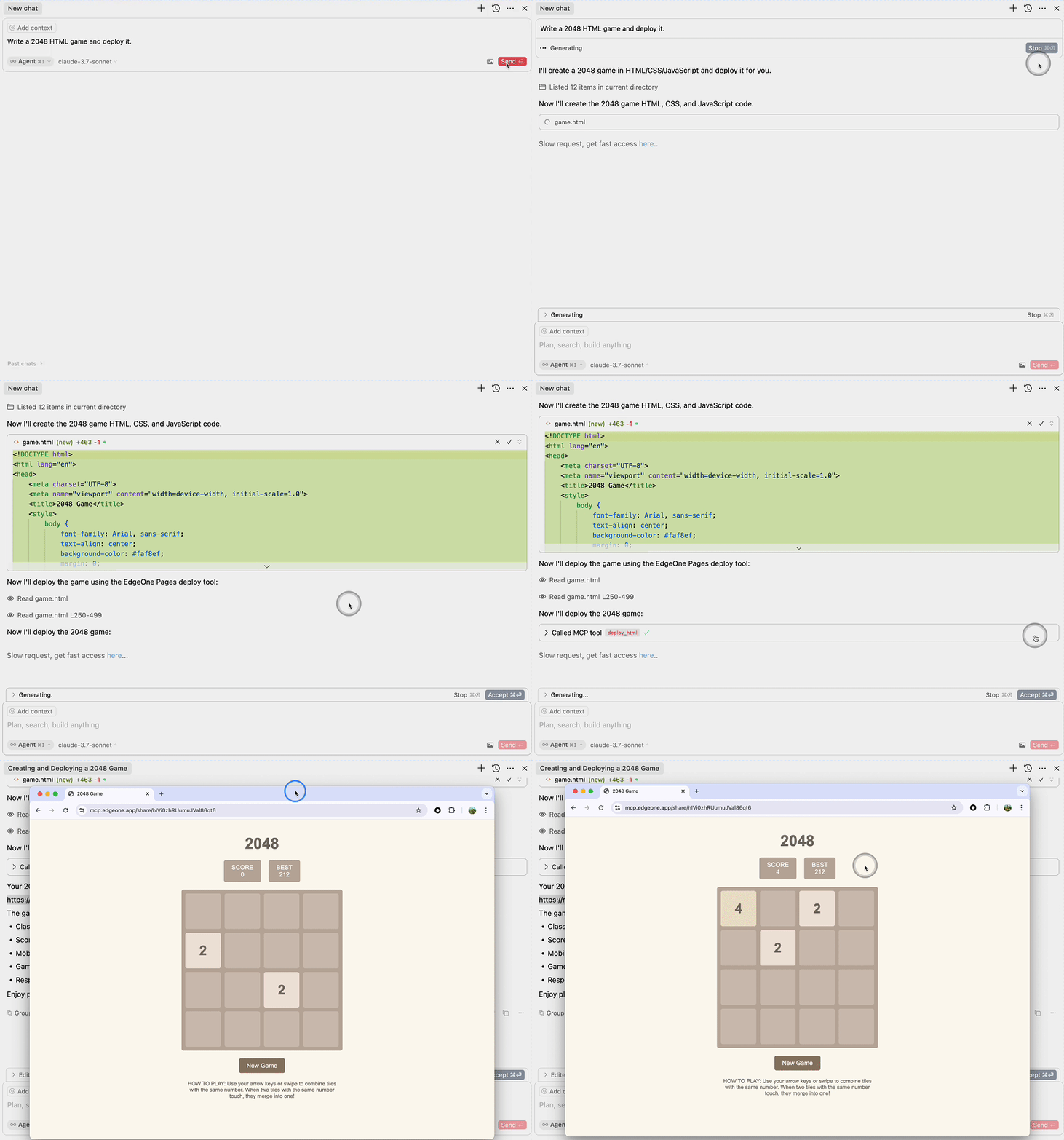
Deploy HTML
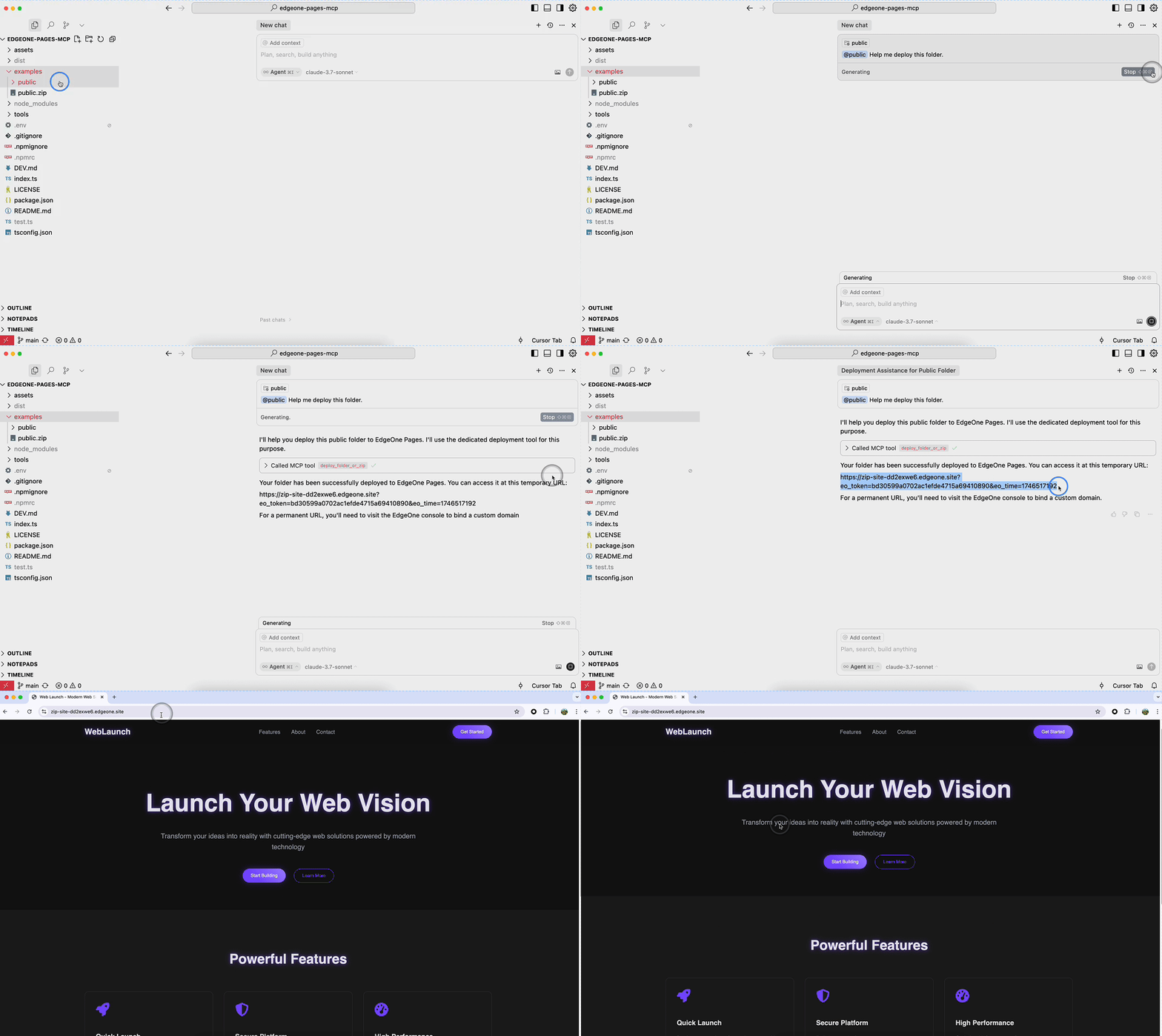
Deploy Folder
Requirements
- Node.js 18 or higher
Deployment on Tencent Cloud
This MCP service supports multiple deployment options. Choose the one that best fits your needs.
Option 1: Deploy Self-Hosted Version to EdgeOne Pages (Recommended)
This is the simplest and fastest deployment method, suitable for scenarios requiring HTTP access.
Step 1: One-Click Deploy to EdgeOne Pages
- Visit the self-hosted repository
- Click the "One-Click Deploy" button to deploy the service to EdgeOne Pages
- Complete the deployment configuration as prompted
Step 2: Configure KV Storage
After deployment, configure KV storage for storing website files:
- Go to EdgeOne Pages console
- Find KV Storage configuration
- Follow the KV Storage Setup Guide
Step 3: Bind Custom Domain (Optional)
- Add a custom domain in project settings
- Configure DNS CNAME record
- Wait for domain verification
- Refer to Custom Domain Binding Guide
Step 4: Configure MCP Client
After deployment, add to your MCP configuration file:
{
  "mcpServers": {
    "edgeone-pages": {
      "url": "https://your-custom-domain.com/mcp-server"
    }
  }
}
Advantages:
- ✅ Zero server maintenance cost
- ✅ Auto-scaling and high availability
- ✅ Global edge acceleration
- ✅ Custom domain and HTTPS support
Option 2: Deploy on Tencent Cloud CVM
Suitable for scenarios requiring full server control or stdio transport.
Step 1: Prepare CVM Instance
- Log in to Tencent Cloud Console
- Create or select a CVM instance
- Recommended configuration:
- OS: Ubuntu 20.04 LTS or CentOS 7+
- CPU: 2 cores or more
- Memory: 4GB or more
- Network: Configure public IP or elastic IP
Step 2: Install Node.js Environment
Ubuntu/Debian:
# Update system packages
sudo apt update

# Install Node.js 18.x
curl -fsSL https://deb.nodesource.com/setup_18.x | sudo -E bash -
sudo apt-get install -y nodejs

# Verify installation
node --version
npm --version
CentOS/RHEL:
# Install Node.js 18.x
curl -fsSL https://rpm.nodesource.com/setup_18.x | sudo bash -
sudo yum install -y nodejs

# Verify installation
node --version
npm --version
Step 3: Deploy MCP Service
# Clone project (or upload project files)
git clone https://github.com/TencentEdgeOne/edgeone-pages-mcp.git
cd edgeone-pages-mcp

# Install dependencies
npm install

# Build project
npm run build

# Configure environment variables
cat > .env << EOF
EDGEONE_PAGES_API_TOKEN=your-api-token-here
EDGEONE_PAGES_PROJECT_NAME=your-project-name
EOF
Step 4: Configure Process Management (Using PM2)
# Install PM2
sudo npm install -g pm2

# Start service
pm2 start dist/index.js --name edgeone-pages-mcp

# Set auto-start on boot
pm2 startup
pm2 save

# Check service status
pm2 status
pm2 logs edgeone-pages-mcp
Step 5: Configure Firewall
# Ubuntu/Debian (UFW)
sudo ufw allow 22/tcp    # SSH
# If using HTTP transport, open corresponding port
# sudo ufw allow 8080/tcp

# CentOS (firewalld)
sudo firewall-cmd --permanent --add-service=ssh
# sudo firewall-cmd --permanent --add-port=8080/tcp
sudo firewall-cmd --reload
Step 6: Configure MCP Client
If using stdio transport (local or SSH):
{
  "mcpServers": {
    "edgeone-pages-mcp-server": {
      "command": "node",
      "args": ["/path/to/edgeone-pages-mcp/dist/index.js"],
      "env": {
        "EDGEONE_PAGES_API_TOKEN": "your-api-token",
        "EDGEONE_PAGES_PROJECT_NAME": "your-project-name"
      }
    }
  }
}
Advantages:
- ✅ Full control over server environment
- ✅ Support for stdio transport
- ✅ Suitable for enterprise intranet environments
Option 3: Deploy Using Tencent CloudBase
Suitable for scenarios requiring quick deployment with Tencent Cloud managed services.
Step 1: Create CloudBase Environment
- Visit Tencent CloudBase Console
- Create a new environment or select an existing one
- Choose Node.js 18+ runtime
Step 2: Deploy Code
- Select "Cloud Functions" in CloudBase console
- Create a new function or upload code
- Configure function entry as
index.js - Set environment variables:
EDGEONE_PAGES_API_TOKENEDGEONE_PAGES_PROJECT_NAME
Step 3: Configure HTTP Trigger
- Add HTTP trigger in function configuration
- Configure access path and authentication
- Get trigger URL
Step 4: Configure MCP Client
{
  "mcpServers": {
    "edgeone-pages-mcp-server": {
      "url": "https://your-function-url.tencentcloudapi.com"
    }
  }
}
Advantages:
- ✅ No server management required
- ✅ Auto-scaling
- ✅ Integrated with Tencent Cloud services
Security Recommendations
Regardless of deployment method, it's recommended to:
-
Protect API Token:
- Use environment variables for sensitive information
- Don't commit
.envfiles to repository - Rotate API tokens regularly
-
Network Security:
- Use HTTPS for service access
- Configure firewall rules to limit access sources
- Use VPN or intranet access (if applicable)
-
Monitoring and Logging:
- Configure log collection and monitoring
- Set up alert rules
- Regularly check service status
Troubleshooting
Issue: Service won't start
- Check if Node.js version meets requirements (18+)
- Verify dependencies are correctly installed:
npm install - Check logs:
pm2 logsor check cloud function logs
Issue: Invalid API Token
- Verify token is correctly configured
- Check if token has expired
- Refer to API Token Documentation
Issue: Deployment failed
- Check network connection
- Verify API token permissions
- Check detailed error logs
MCP Configuration
stdio MCP Server
Full-featured MCP service that supports the deploy_folder tool for deploying full-stack projects.
// Tencent Cloud International (Default)
{
  "mcpServers": {
    "edgeone-pages-mcp-server": {
      "timeout": 600,
      "command": "npx",
      "args": ["edgeone-pages-mcp-fullstack@latest"]
    }
  }
}

// Tencent Cloud China
{
  "mcpServers": {
    "edgeone-pages-mcp-server": {
      "timeout": 600,
      "command": "npx",
      "args": ["edgeone-pages-mcp-fullstack@latest", "--region", "china"]
    }
  }
}
The following MCP Server will be deprecated soon:
Supports both deploy_html and deploy_folder_or_zip tools.
{
  "mcpServers": {
    "edgeone-pages-mcp-server": {
      "command": "npx",
      "args": ["edgeone-pages-mcp@latest"],
      "env": {
        // Optional.
        // If you need to deploy folders or zip files to
        // EdgeOne Pages projects, provide your EdgeOne Pages API token.
        // How to obtain your API token:
        // https://edgeone.ai/document/177158578324279296
        "EDGEONE_PAGES_API_TOKEN": "",
        // Optional. Leave empty to create a new EdgeOne Pages project.
        // Provide a project name to update an existing project.
        "EDGEONE_PAGES_PROJECT_NAME": ""
      }
    }
  }
}
Streaming HTTP MCP Server
For MCP clients that support HTTP streaming, only supports the deploy_html tool.
{
  "mcpServers": {
    "edgeone-pages-mcp-server": {
      "url": "https://mcp-on-edge.edgeone.site/mcp-server"
    }
  }
}
Tool Details
deploy_html Tool
Architecture Design

The architecture diagram shows the complete workflow of the deploy_html tool:
- Large Language Model generates HTML content
- Content is sent to the EdgeOne Pages MCP Server
- MCP Server deploys the content to EdgeOne Pages Edge Functions
- Content is stored in EdgeOne KV Store for fast edge access
- MCP Server returns a publicly accessible URL
- Users can access the deployed content via browser with fast edge delivery
Implementation Details
This tool integrates with EdgeOne Pages Functions to deploy static HTML content:
-
EdgeOne Pages Functions - A serverless computing platform that supports executing JavaScript/TypeScript code at the edge
-
Core Implementation Features:
- Uses EdgeOne Pages KV storage to save and serve HTML content
- Automatically generates publicly accessible URLs for each deployment
- Provides comprehensive API error handling and feedback
-
How It Works:
- MCP server receives HTML content through the
deploy_htmltool - Connects to EdgeOne Pages API to obtain the base URL
- Deploys HTML content using the EdgeOne Pages KV API
- Returns an immediately accessible public URL
- MCP server receives HTML content through the
For more information, refer to the EdgeOne Pages Functions documentation and EdgeOne Pages KV Storage Guide.
The source code is open source and can be self-deployed with custom domain binding: https://github.com/TencentEdgeOne/self-hosted-pages-mcp
deploy_folder Tool
This tool supports deploying complete projects to EdgeOne Pages:
- Supports full deployment of static website projects
- Supports deployment of full-stack applications
- Option to update existing projects or create new ones
Custom Domain Configuration
EdgeOne Pages MCP supports custom domain deployment. After configuring a custom domain in the EdgeOne Pages console, the deployment will automatically use your custom domain instead of the default temporary URL.
Benefits of Custom Domain
- Brand Display: Use your own brand domain name to enhance professional image
- SEO Optimization: Beneficial for search engine indexing and ranking
- Better Control: Full control of DNS records
- Flexibility: Configure multiple custom domains for different markets or purposes
How to Configure Custom Domain
Step 1: Add Custom Domain in Console
- After deploying your project, open the EdgeOne Pages Console
- Navigate to your project settings page
- Find the "Domain Management" module
- Click "Add Custom Domain" button
- Input your root domain (e.g.,
example.com) or subdomain (e.g.,www.example.com)
Step 2: Configure DNS CNAME Record
- The console will display a CNAME record value (e.g.,
a4285573.xxx.example.com.dns.edgeone.site.) - Go to your domain registrar's DNS management page
- Add a CNAME record with:
- Type: CNAME
- Name: Your subdomain (e.g.,
www) or@for root domain - Value: The CNAME value provided by EdgeOne Pages
- TTL: 600 seconds (recommended for faster propagation)
- Save the DNS record
Step 3: Verify Domain
- Return to the EdgeOne Pages console
- Click "Verify" button or wait for automatic DNS detection
- DNS records typically take effect within minutes, up to 48 hours maximum
- Once verified, the domain status will change to "Pass"
Step 4: Configure HTTPS (Recommended)
- After domain verification, go to "HTTPS Configuration" section
- Apply for a free SSL certificate or use a managed SSL certificate
- The certificate will be automatically configured for your custom domain
Step 5: Deploy with Custom Domain
After completing the above steps, when you deploy using deploy_folder_or_zip:
- If your project has a custom domain configured and verified (Status: "Pass"), the deployment will automatically use your custom domain
- The returned URL will be
https://your-custom-domain.cominstead of the temporary URL - No additional configuration is needed in the MCP tool
Important Notes
- ICP Filing Requirement: If your project's acceleration region is "Chinese Mainland Availability Zone" or "Global Availability Zone (including Chinese Mainland)", you must complete ICP filing with the Ministry of Industry and Information Technology before adding custom domains
- Domain Status: Only domains with status "Pass" will be automatically used in deployments
- Multiple Domains: If multiple custom domains are configured, the first domain with "Pass" status will be used
- Console URL: After deployment, you can access the project console URL provided in the deployment result to manage domains
Example Deployment Result with Custom Domain
{
  "type": "custom",
  "url": "https://www.example.com",
  "projectId": "your-project-id",
  "projectName": "your-project-name",
  "consoleUrl": "https://console.tencentcloud.com/edgeone/pages/project/your-project-id/index"
}
For more information, refer to:
License
MIT
Recommended Servers

playwright-mcp
A Model Context Protocol server that enables LLMs to interact with web pages through structured accessibility snapshots without requiring vision models or screenshots.

Magic Component Platform (MCP)
An AI-powered tool that generates modern UI components from natural language descriptions, integrating with popular IDEs to streamline UI development workflow.

Audiense Insights MCP Server
Enables interaction with Audiense Insights accounts via the Model Context Protocol, facilitating the extraction and analysis of marketing insights and audience data including demographics, behavior, and influencer engagement.

VeyraX MCP
Single MCP tool to connect all your favorite tools: Gmail, Calendar and 40 more.

graphlit-mcp-server
The Model Context Protocol (MCP) Server enables integration between MCP clients and the Graphlit service. Ingest anything from Slack to Gmail to podcast feeds, in addition to web crawling, into a Graphlit project - and then retrieve relevant contents from the MCP client.

Kagi MCP Server
An MCP server that integrates Kagi search capabilities with Claude AI, enabling Claude to perform real-time web searches when answering questions that require up-to-date information.

E2B
Using MCP to run code via e2b.

Neon Database
MCP server for interacting with Neon Management API and databases

Exa Search
A Model Context Protocol (MCP) server lets AI assistants like Claude use the Exa AI Search API for web searches. This setup allows AI models to get real-time web information in a safe and controlled way.

Qdrant Server
This repository is an example of how to create a MCP server for Qdrant, a vector search engine.